Microsoft Outlook Integration: Configure a Staff or Student Outbound Sync
Overview
A Staff or Student Outbound sync automatically publishes reservations from TimeEdit to Microsoft 365 calendars.
This guide explains how to edit an existing outbound sync setting.
Before You Begin
Before editing an outbound sync, ensure that:
- The Microsoft Outlook integration has already been configured.
- All users included in the sync have valid e-mail addresses configured in TimeEdit.
- A Staff or Student Outbound sync setting already exists.
Open Sync Settings
- Go to Admin.
- Select App Settings → Integration.
- Select Microsoft 365.
- Open Sync settings.
- Open the sync setting you want to edit.
Configure the Synchronisation Interval
The synchronisation interval determines which reservations are synchronised.
You can configure:
- A relative interval
- An absolute date range
Student Sync Limitation
Student outbound synchronisation currently supports a maximum interval of 14 days.
Configure Optional Filters
Optional filters can be used to limit which reservations are synchronised.
Examples include:
- Reservation status - Choose from ‘Confirmed’, ‘Preliminary’ and ‘Planned’
- Reservation mode
Configure the Outlook Subject
The Subject field determines how the event title appears in Outlook.
The subject can be built using your optional combination of :
- Object fields
- Reservation fields
- Free text
The Subject field determines how the event title appears in Outlook.
Example:
Course name + Activity type + Comment
Subject Alternatives
You can configure multiple subject alternatives.
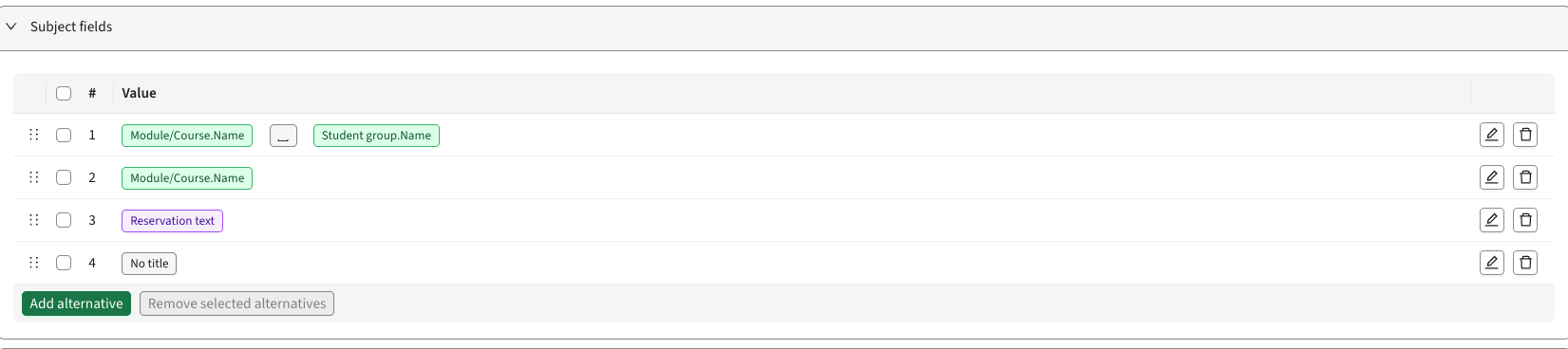
The integration evaluates the alternatives from top to bottom and uses the first complete alternative where all configured fields contain values on the given reservation.
Example:
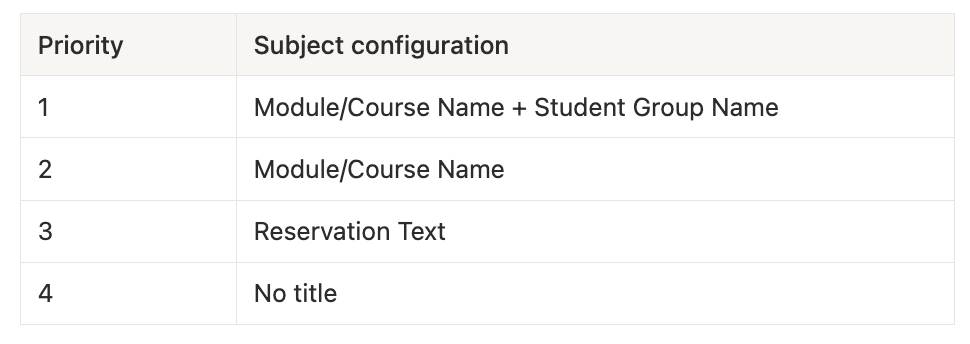
In this example:
- If both Module/Course Name and Student Group Name exist, the first alternative is used.
- If Student Group Name is missing, the integration uses the second alternative.
- If Module/Course Name is also missing, the integration uses Reservation Text.
- If none of the configured alternatives contain valid values, Outlook will receive (No subject) unless a free-text fallback has been configured as in this example ‘No title’.
Recommended Practice
Configure several alternatives to ensure that all synchronised type of reservations receive meaningful event titles.
Configure the Outlook Location
The Location field determines what users see as the event location in Outlook. It has the option to set alternatives, as in the above setting for Outlook Subject.
Typical examples include:
- Room name
- Room name + Campus
Configure the Outlook Description
The Description field controls the information shown in the Outlook event body.
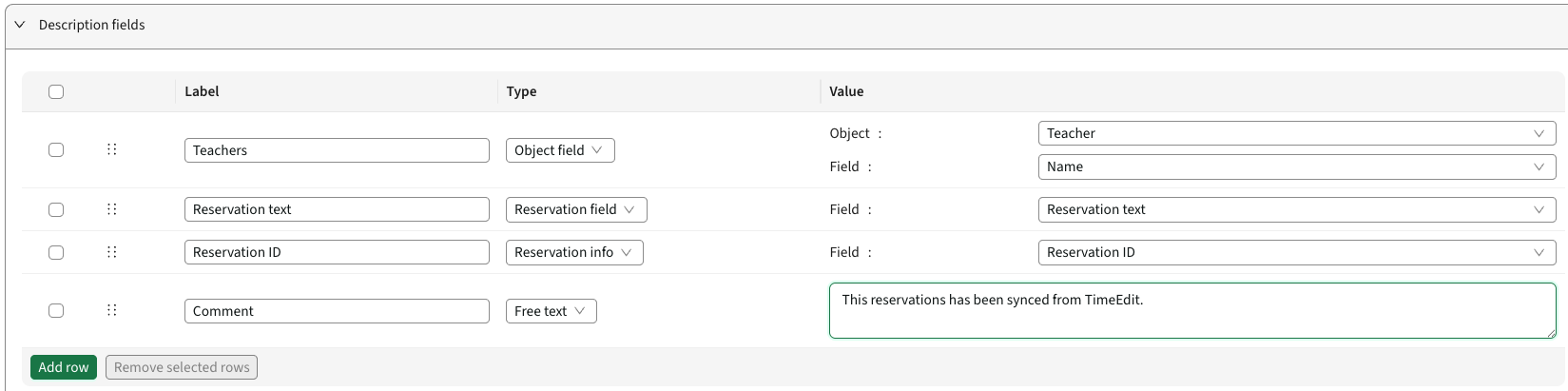
Description fields are configured as individual rows.
Supported Field Types
You can include information from:
- Object fields
- Reservation fields
- Reservation information
- Free text
For each row, you define:
- A Label
- Type of field
- Either
- An Object + Field
- A Field
- Your own choice of Free Text
Using Labels
The Label is displayed together with the selected value in the Outlook event description.
Example:
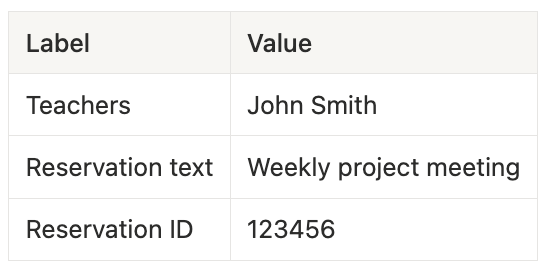
The generated Outlook description may appear as:
Teachers: John Smith
Reservation text: Weekly project meeting
Reservation ID: 123456
Empty Values
Description rows are only included when the selected value exists on the reservation.
For example:
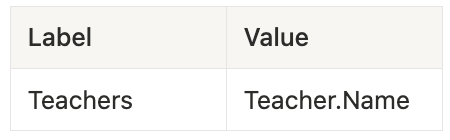
If the reservation does not contain a Teacher object, the row is omitted entirely and no output is generated.
This helps keep event descriptions clean and prevents empty labels from being displayed.
Select Users to Synchronise
Choose which user objects should be included in the synchronisation.
Available options:
- All - includes all user objects within the set Object Type
- Filtered - allows you to use Category Fields for filtering on objects (ie. Campus X)
- Selected - you click ‘Add’ to choose the objects to include in the synchronisation
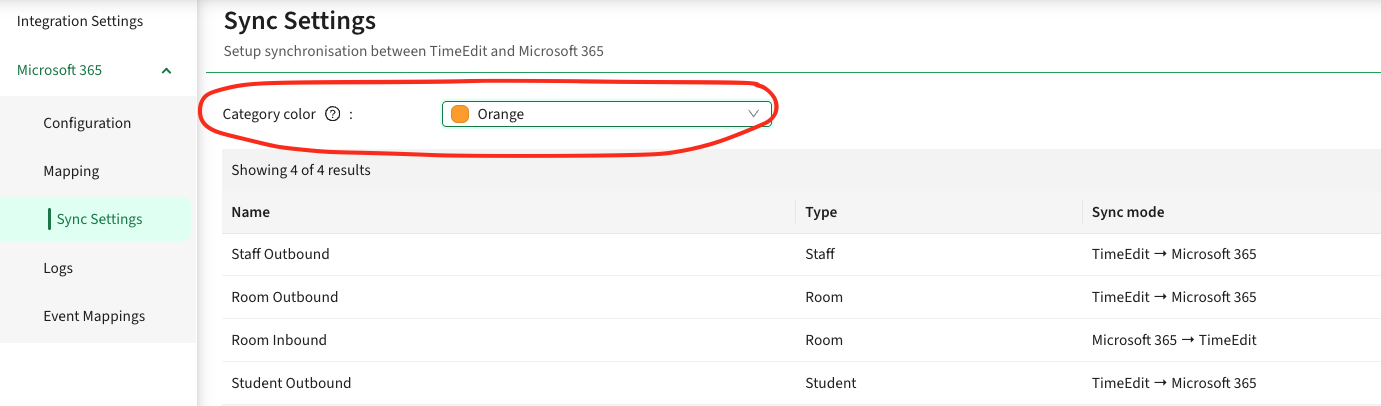
Configure Event Color
If required, configure a color for synchronised reservations.
The selected color will be applied to reservations created through this sync setting.
This is made in the general tab ‘Sync settings’ and applies for all below Sync Settings.
Save Changes
Click Save to apply the updated configuration.
Result
New and updated reservations that match the configured criteria will automatically be synchronised from TimeEdit to Microsoft 365 user calendars. Already existing reservations will be synced in the nightly run.