Microsoft Outlook Integration: View Event Mappings and Logs

Overview
The Microsoft Outlook integration includes tools for monitoring and troubleshooting synchronisation between TimeEdit and Microsoft 365.
When investigating a synchronisation issue, the Event mappings and Logs pages should always be your first point of reference.
Before You Begin
Before using the troubleshooting tools, ensure that:
- The Microsoft Outlook integration is configured and active.
- At least one sync setting has been enabled.
- The reservation or event falls within the configured synchronisation interval.
Open the Microsoft 365 Integration
- Go to Admin.
- Select App settings
- Select Integration.
- Select Microsoft 365.
From here, you can access:
- Sync settings
- Event mappings
- Logs
View Event Mappings
The Event mappings page displays all events that have been synchronised between TimeEdit and Microsoft 365.
To view event mappings:
- Open Event mappings.
- Select the appropriate Sync mode:
- TimeEdit → Microsoft 365 to view events synchronised from TimeEdit to Outlook.
- Microsoft 365 → TimeEdit to view events synchronised from Outlook to TimeEdit.
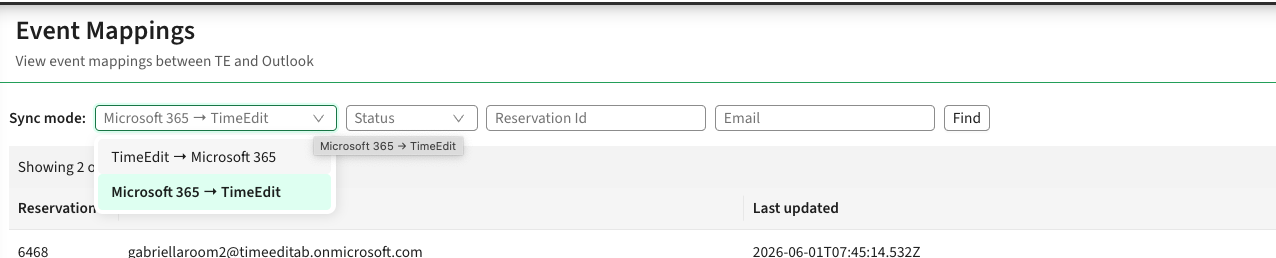
- Optionally filter the results using:
- Status
- Reservation ID
- E-mail address
- Click Find.
Understanding Sync Modes
The selected sync mode determines which mappings are displayed.
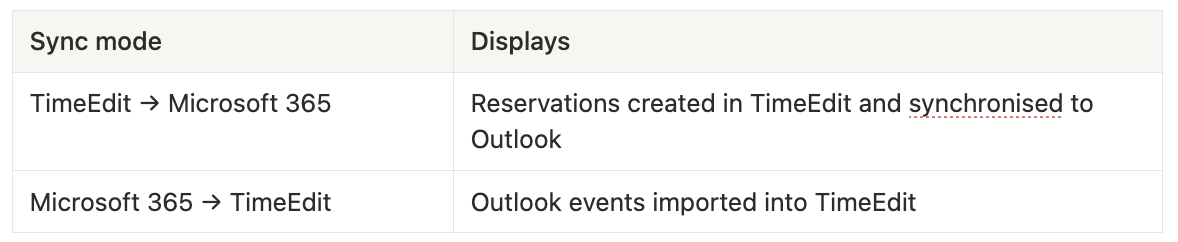
Sync modeDisplaysTimeEdit → Microsoft 365Reservations created in TimeEdit and synchronised to OutlookMicrosoft 365 → TimeEditOutlook events imported into TimeEdit
If you cannot find the reservation you are looking for, verify that the correct sync mode is selected before continuing troubleshooting.
When to Use Event Mappings
Use Event mappings when you want to:
- Verify that a reservation has been synchronised.
- Confirm that an Outlook event has been imported into TimeEdit.
- Check when an event was last synchronised.
- Verify that a reservation is linked to the correct Outlook event.
- Troubleshoot missing or duplicated events.
View Logs
The Logs page contains information about synchronisation activity and processing errors.
To view logs:
- Open Logs.
- Locate the relevant synchronisation entry.
- Review any warnings or error messages.
The Logs page can help identify:
- Failed synchronisation attempts.
- Processing errors.
- Mapping issues.
- Configuration-related problems.
When to Use Logs
Use Logs when:
- An expected event was not synchronised.
- Synchronisation appears delayed.
- An error message is reported by a user.
- A reservation exists in Event mappings but is not behaving as expected.
Also use them in order to make sure the integration runs as supposed and are not causing any errors.
Troubleshooting Checklist
If a reservation or event is not synchronised as expected:
Step 1 – Verify the Sync Setting
Confirm that:
- The correct sync setting is enabled.
- The reservation falls within the configured synchronisation interval.
- The relevant room, staff member, or student is included in the sync scope.
Step 2 – Check Event Mappings
Verify that:
- The reservation appears in Event mappings.
- A corresponding Outlook event has been created.
- The event has been processed by the expected sync setting.
Step 3 – Review Logs
Look for:
- Synchronisation failures.
- Validation errors.
- Missing object mappings.
- Processing warnings.
Step 4 – Verify Outlook Data
Confirm that:
- The room, staff member, or student has a valid e-mail address.
- The event exists in Microsoft 365.
- The event has been accepted or confirmed where applicable.
Step 5 – Wait for Scheduled Synchronisation
Some changes may not appear immediately.
Depending on the synchronisation type, updates may be processed during scheduled synchronisation jobs.
Common Behaviour
Outlook Event Not Imported
Only confirmed Outlook events are imported into TimeEdit.
Pending or tentative events are ignored until they are confirmed.
Reservation Missing in Outlook
Verify that:
- The reservation falls within the configured interval.
- The reservation matches any configured filters.
- The relevant object is included in the sync setting.
Changes Reappear After Being Removed in Outlook
For outbound synchronisations, TimeEdit is considered the source of truth.
Changes made directly in Outlook may be overwritten by subsequent synchronisation.
Student Calendar Changes Are Not Updated Immediately
Changes made by students in Outlook may not be reflected immediately.
These updates are processed during scheduled nightly synchronisation runs.
Result
Using Event mappings and Logs allows administrators to verify synchronisation status, identify errors, and resolve most Microsoft Outlook integration issues without requiring additional system configuration.