All guides & tutorials
in this lesson
1
Permissions needed
2
Select objects
3
Configure export
4
Track export job
5
View result and download file
6
Tips
7
8
9
10
11
share
Export objects
This guide explains how to export objects from Admin, including selecting fields, choosing file format, and downloading the result.
Requirements
Permissions needed
TE_ADMIN::admin
or
TE_ADMIN:user + TE_ADMIN::manageObjects + TE_ADMIN::exportObjects
Select objects
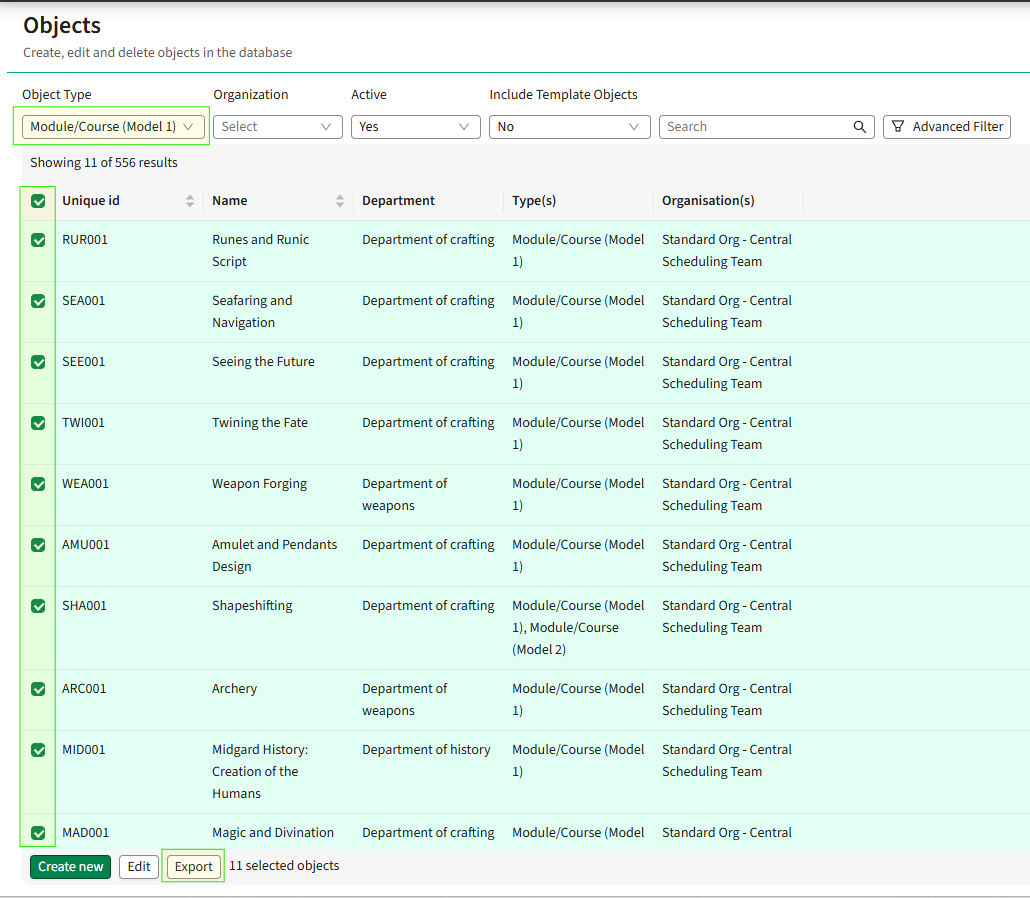
- Go to Admin → Objects.
- Select the object type you want to export (e.g. Module/Course).
- Use the checkboxes to select one or more objects.
- Click Export.
Configure export
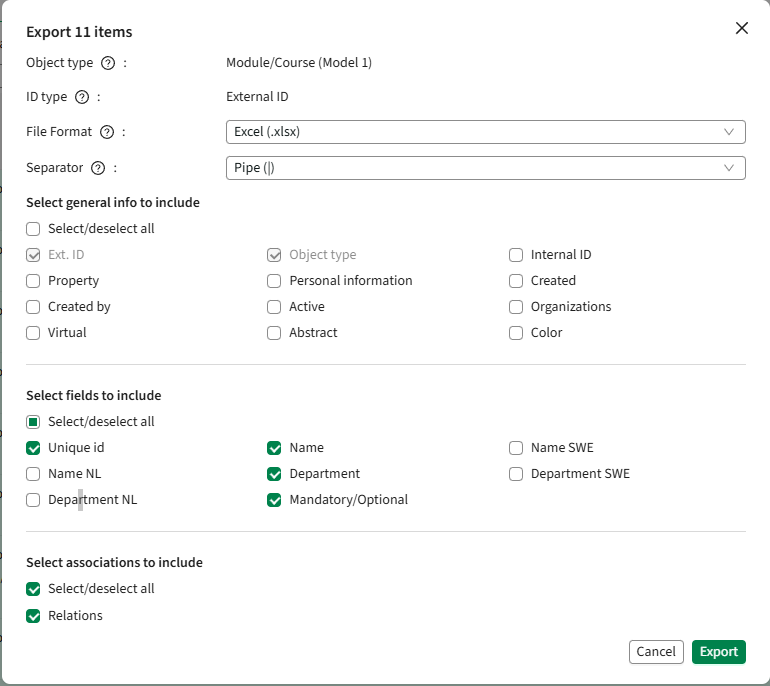
In the export dialog:
1. Choose file settings
- File format:
- Excel (.xlsx)
- CSV
- Separator (for CSV):
- Comma (,), Semicolon (;), Pipe (|), or Forward slash (/)
- Separator is used when a field can have multiple values
2. Select general information
- External ID and Object type are always included
- Optional fields include:
- Property
- Created by
- Active
- Organizations
- etc.
3. Select fields Property
- Choose which object fields to include (e.g. Name, Department, Unique id)
- Use Select/deselect all if needed
4. Select asscociations
- Choose related data to include:
- Relations
- Memberships
- Optional relations
- Availability relations
Click Export to start the job
Track export job
- The export runs as a batch operation
- Status will show:
- In queue → processing
- Finished → ready to download

.png)
View result and download file
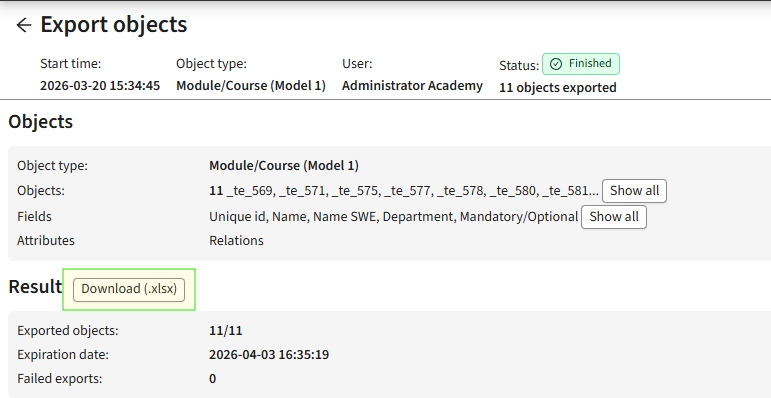
- Click View details on the export job
- Review:
- Number of exported objects
- Expiration date
- Any failed exports
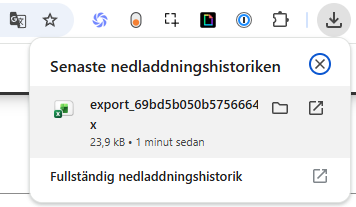
- Click Download (.xlsx / .csv)
- The file will be saved to your computer
- Open it in Excel to view the exported data

Tips
- It takes a few moments for the service to spin up, then the job is in queue
- Use Excel format if you want easier readability and formatting
- Use CSV if you plan to import the data into another system
- Include Associations when you need connected data between objects
- Large exports may take a few minutes to complete