Curriculum: Personalising change messages with labels
This guide explains how to replace the default entries on the changes page with a readable sentence per sub-object, using a label with placeholders and the Message within changes setting on the custom type.

Why personalise change messages
When something changes on an object in Curriculum (a module group is added to a study, the additional fields of a module are edited, and so on), the change is listed on the changes page and in the object's change history. By default these entries are grouped under the technical sub-object names, such as Additional, Specification, Relation or Study points. Those are admin terms rather than academic ones, so end users often can't tell what actually changed.
With Message within changes you can configure a readable sentence per sub-object that explains the change, for example (illustrative):
The module "(AB_1011) Biomedical Sciences and Society Y2" is added to module group "Year 2 compulsory" by John Doe.
How it works
- Every custom type, and every sub-object within it, has a Message within changes option. Go to Administration -> Custom types and fields -> (custom type) -> General. You can set a different message for each sub-object (for example study -> module group, module -> additional), which makes it quite detailed.
- The message itself is stored as a label: a special label with interpolation, managed under Administration -> Labels like any other label (see Curriculum: Labels). Because it's a label, you can set a text per language (e.g. EN / NL / SV).
- It is recommended to create the labels following a pattern
CHANGES.<OBJECT>.<SUB-OBJECT>, for exampleCHANGES.MODULE.ADDITIONALorCHANGES.STUDY.STUDY-MODULE-GROUP. - The label text contains placeholders that Curriculum fills in when the change is shown. The (i) icon at the end of the field lists all available placeholders.
Placeholders
| Placeholder | Filled with |
|---|---|
{{changedEntity}} | The object that was changed, added or removed (e.g. the module) |
{{rootEntity}} | The object the change was made on (e.g. the module group or study) |
{{changeTypeLowerCase}} | The type of change in lower case (e.g. added to / removed from / changed) |
{{createdBy}} | The user who made the change |
Step by step
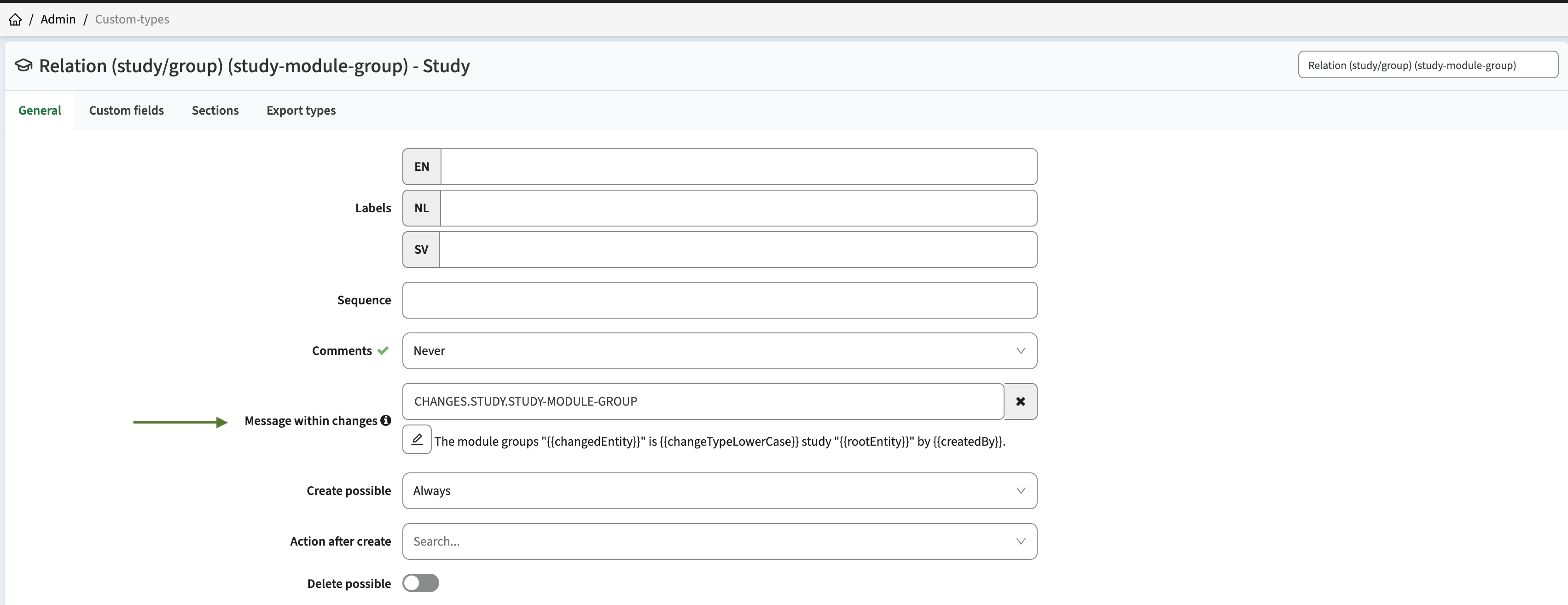
1. Create the label. Go to Administration -> Navigation -> Labels and click + Add. Use the key CHANGES.<OBJECT>.<SUB-OBJECT> for the sub-object you want a message for, for example CHANGES.STUDY.STUDY-MODULE-GROUP.
2. Write the text per language, using placeholders. For example:
- EN:
The module group "{{changedEntity}}" is {{changeTypeLowerCase}} study "{{rootEntity}}" by {{createdBy}}. - NL:
{{createdBy}} heeft {{changedEntity}} {{changeTypeLowerCase}} "{{rootEntity}}"

3. Link the label to the sub-object. Go to Administration -> Custom types and fields, open the custom type (for example Study) and the General tab. In the row of the sub-object (for example module group), fill in Message within changes with the label.
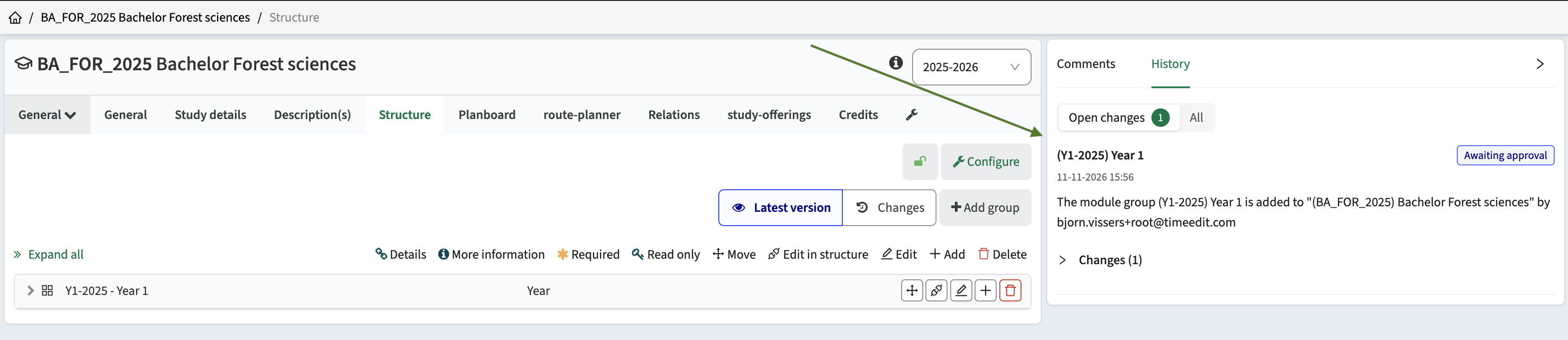
4. Save, then make a test change on an object of that type, for example remove and re-add a module group on a study.
5. Check the result on the changes page and in the object's change history (Feedback -> History -> Show all changes).
Notes and limitations
- Use it for structural changes. The placeholders give the object that changed (
{{changedEntity}}), not the field. For relations such as "module group added to / removed from study" this works well. For sub-objects with many fields, such as Additional, the message only says that something changed in the additional fields. - Set every language your users work in, because each language has its own label text.
For more on custom types and the General tab, see Curriculum: Custom types and fields.