Study Catalogue: AI coach
The Study Catalogue provides two different AI agents using the study guide information to assist students and staff.
Study Catalogue: AI coach
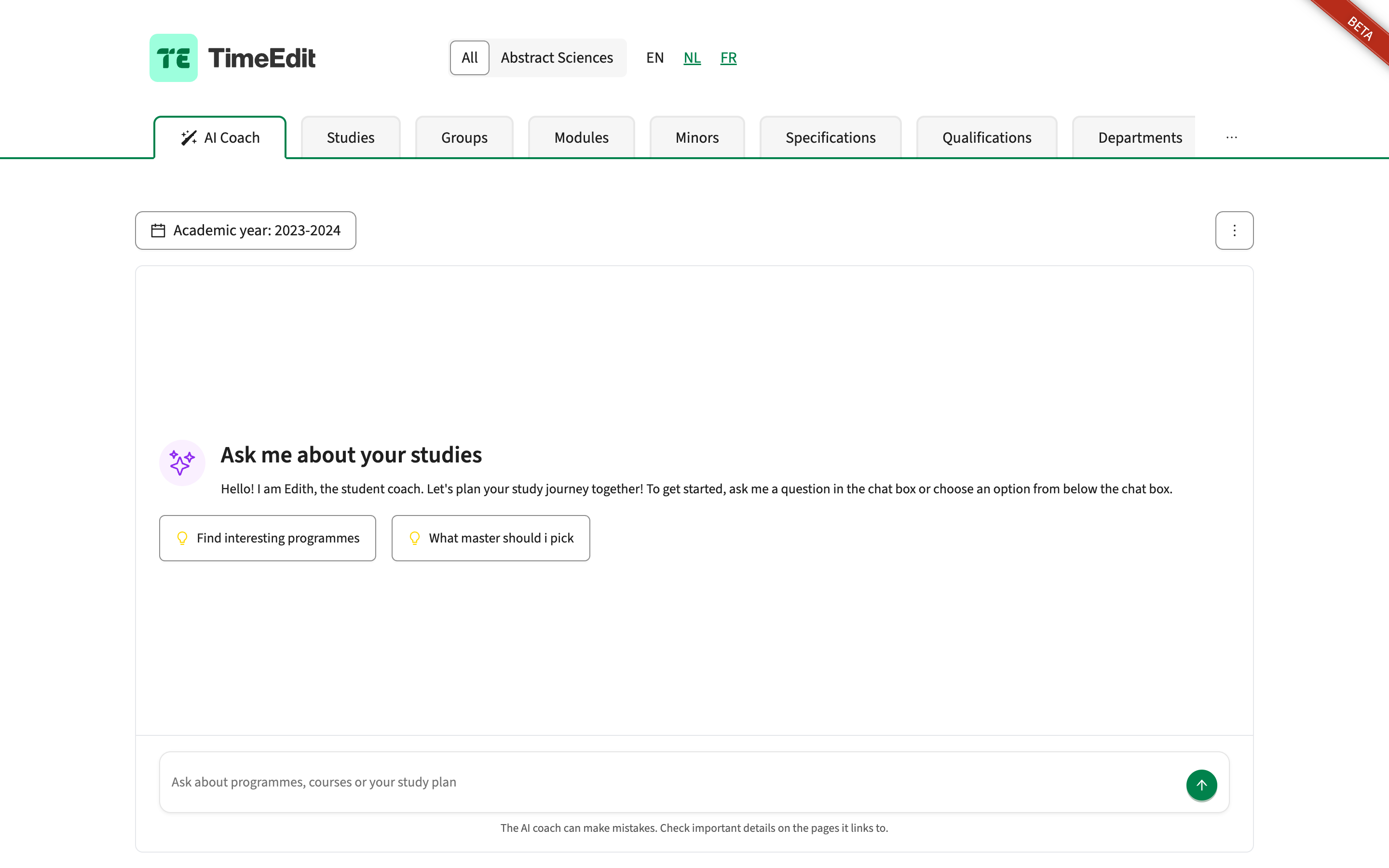
The AI coach is a widget that answers questions about the curriculum in your study catalogue. A user types a question, the coach searches your studies, module groups and modules through the curriculum broker, and answers with links to the pages it found. In a future version, the coach's admin settings will move to TE Admin.
The coach works only with what the curriculum broker holds. The curriculum broker is the TimeEdit service that passes your Curriculum data to Study Catalogue. It holds your studies, module groups, modules, faculties, organisations, specifications, qualifications, teaching methods and assessments, and keeps the search index the coach searches. The coach does not work in Curriculum itself. Data, models and regions shows exactly which fields it uses and which it never gets.
The AI coach is in active development. It can be unstable, and its answers can be incomplete or wrong. We would be glad to hear what works for your users and what could be better: please share your feedback with us.
Two ways to use the coach
The same coach serves two kinds of users, depending on the tab it is placed on. You choose the tab labels yourself; this page uses the suggested labels AI Coach and AI Coach for Staff.
- AI Coach, for students. On a public tab, anyone can ask the coach about the study offering, for example to find modules on a topic or with a certain number of credits.
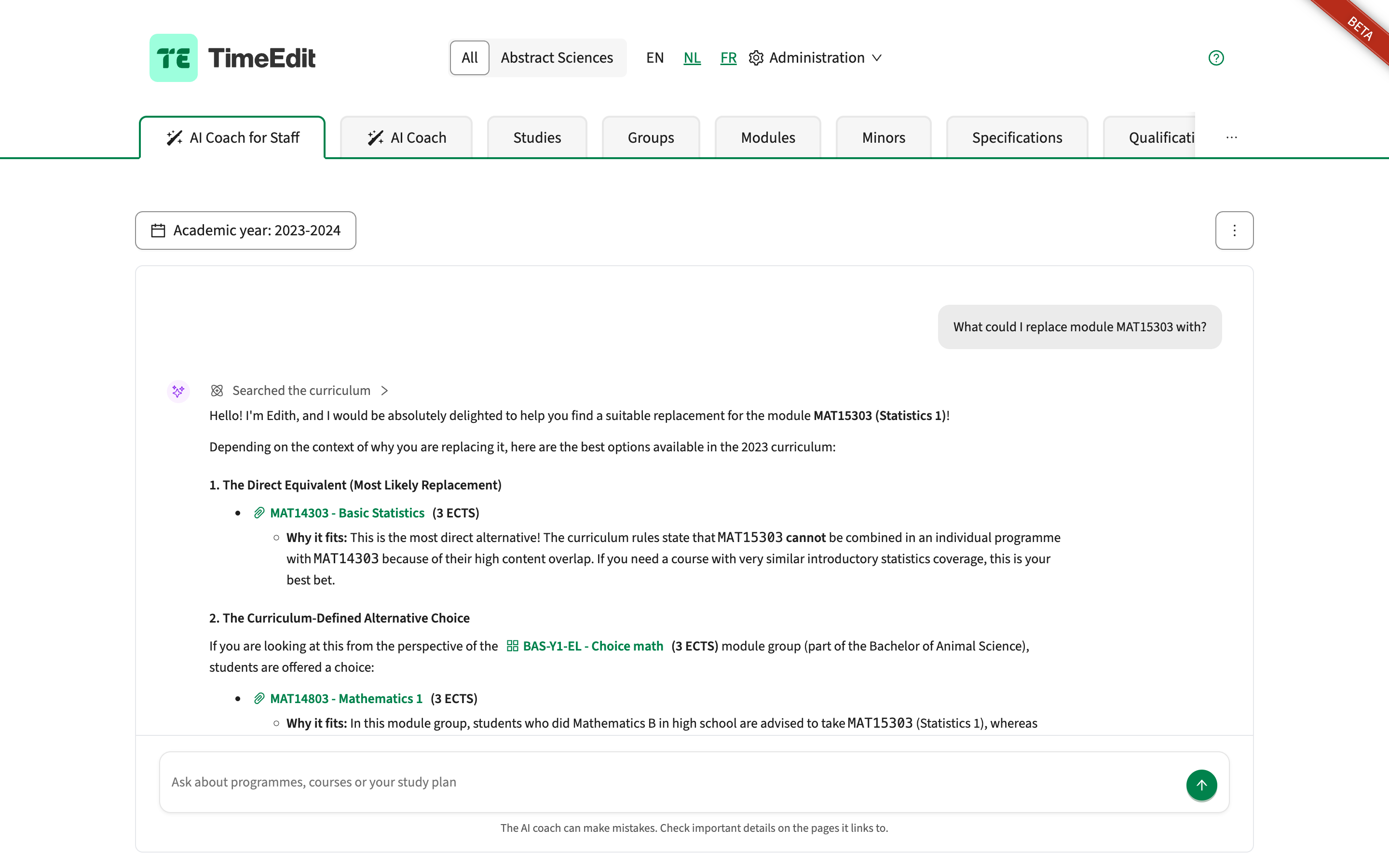
- AI Coach for Staff, for signed-in staff. On a tab marked Authenticated, only signed-in users can open the coach. Staff such as the student administration can use it to search the curriculum in their own words, for example for a module on a topic with a given number of credits, or for a module that could replace another.
Both use the same model. What differs is how the coach addresses the user, which suggested questions it shows, and, for signed-in users, that it also reads the fields on tabs marked Authenticated.
What you can ask the AI coach
The coach answers from what the curriculum broker holds for the year selected in the year switcher above it, in the language of the question. Users can use their own words: "course", "programme", "exam" and "learning form" are understood as module, study, assessment and teaching method. The examples below were asked on a demo study catalogue.
Questions about a topic
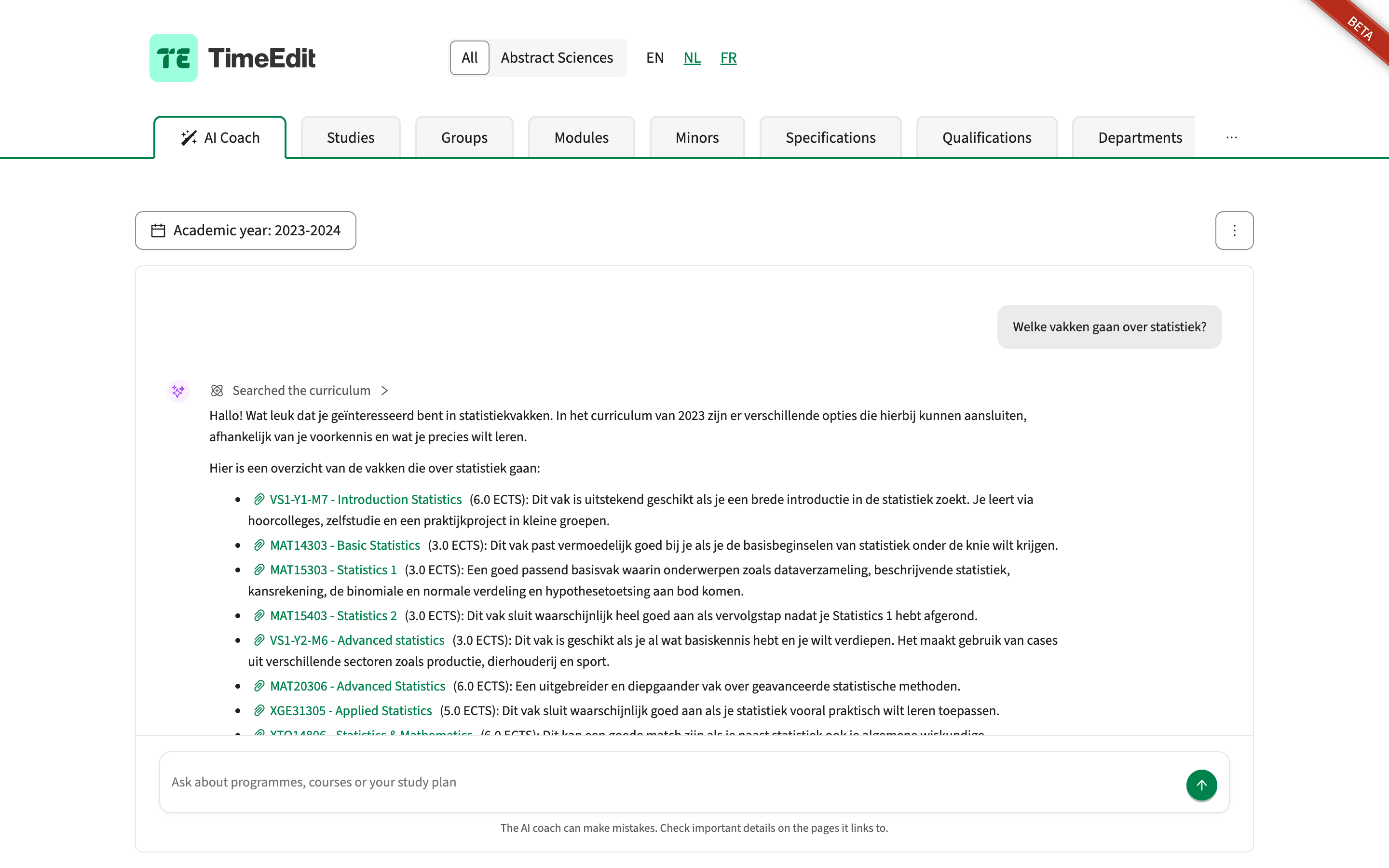
- "Which modules teach statistics?"
- "Welke vakken gaan over statistiek?", answered in Dutch.
Questions with a study type, credits, a period or a study. The coach narrows its search to what the question asks for, using the study types and periods your curriculum holds for that year. Data, models and regions lists exactly what it can narrow on.
- "Is there a 6 ECTS master course on statistics?"
- "Which courses in period 2 are about programming?"
- "Which courses are part of programme X?"
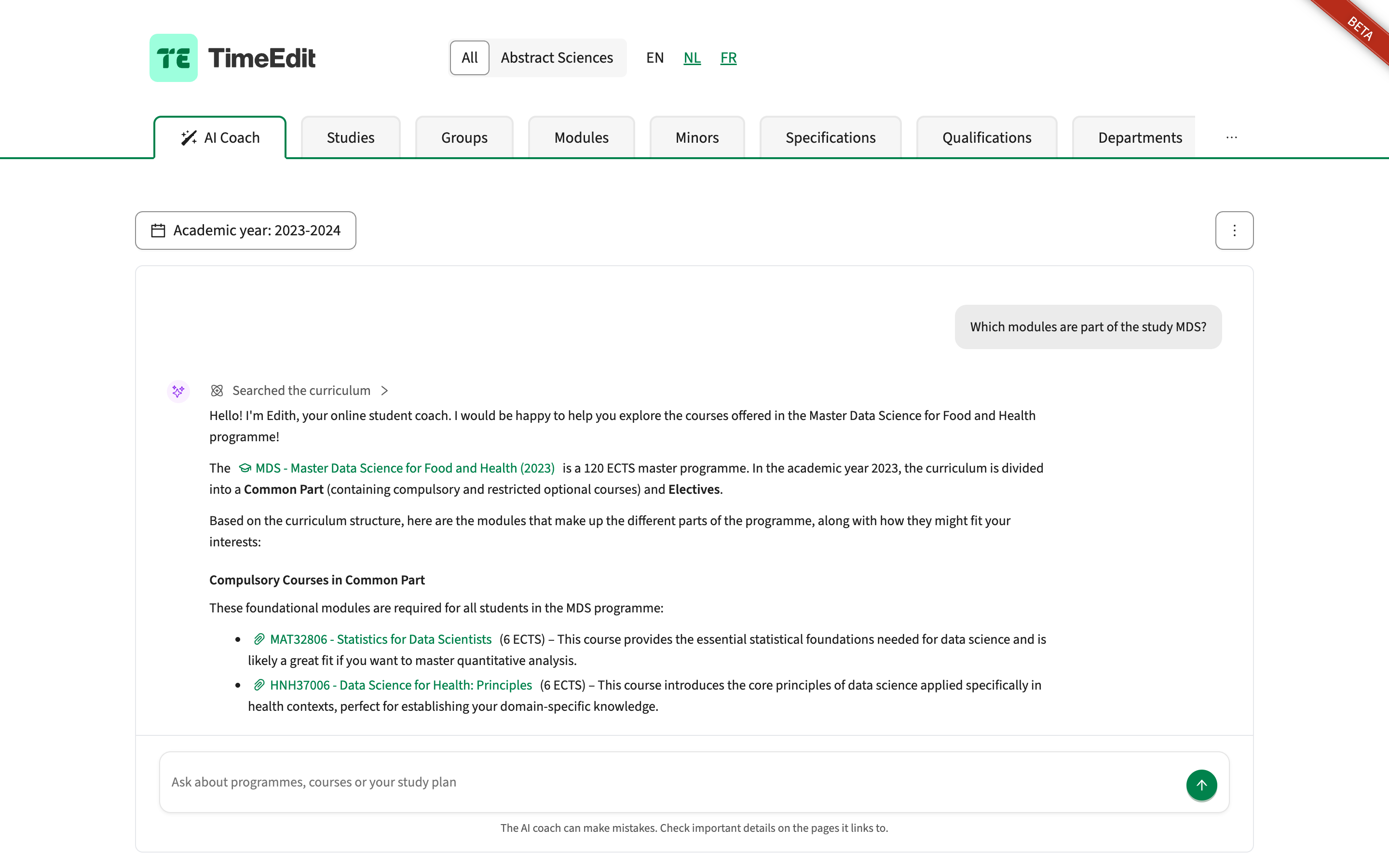
Questions about what a study or module group contains. The coach lists the module groups and modules in a study or module group, following its structure.
- "Which modules are part of the study MDS?"
- "What is in the module group Restricted optionals?"
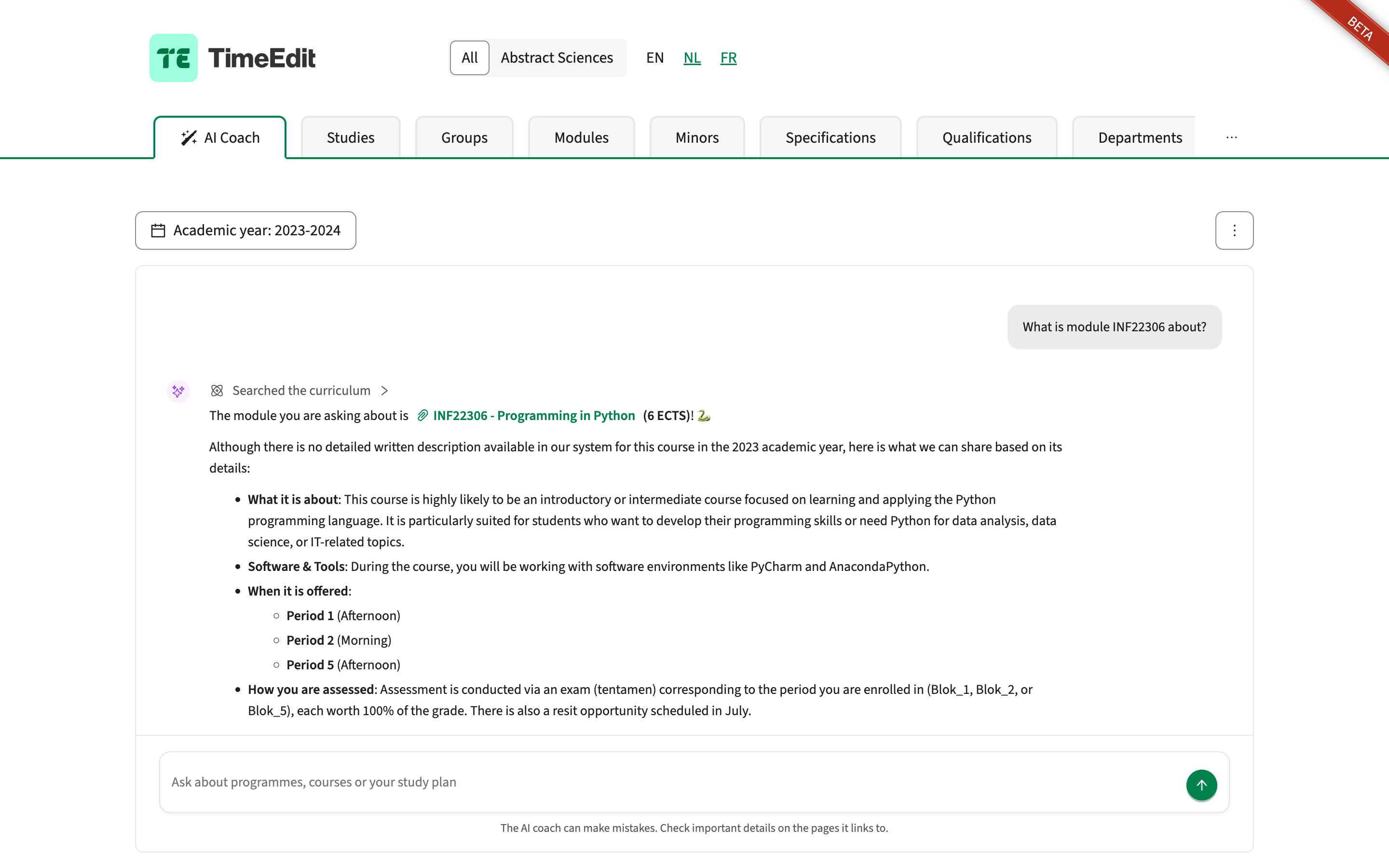
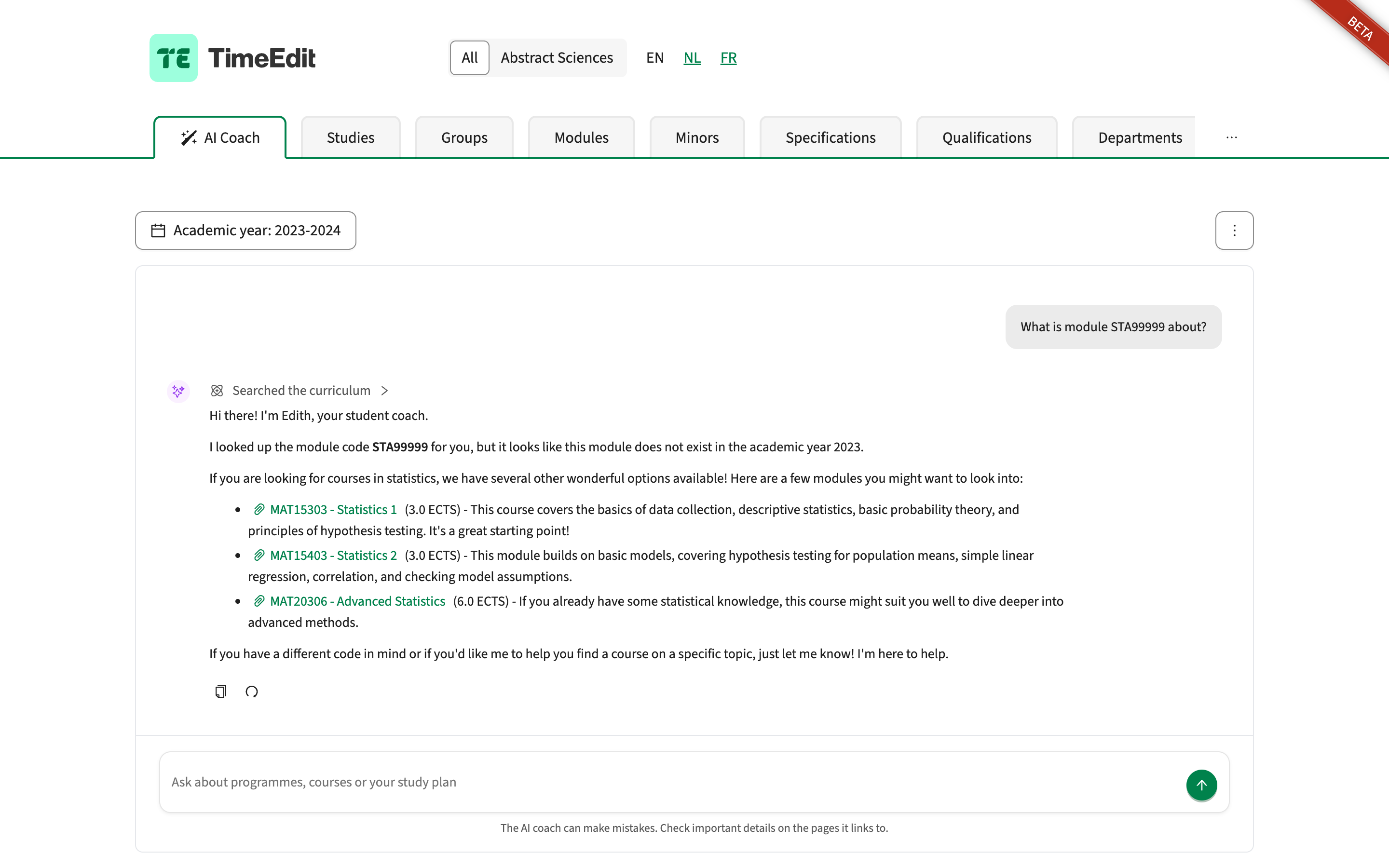
Questions about a code. A code or id in the question is looked up directly, including the code of an assessment or teaching method. When a code does not exist in the selected year, the coach says so.
- "What is module ABC123 about?"
- "How is module ABC123 assessed?"
Follow-up questions are answered with the earlier questions and answers in mind.
- "Which of those has fieldwork?"
- "Welke daarvan zijn 6 ECTS?", after the Dutch question above.

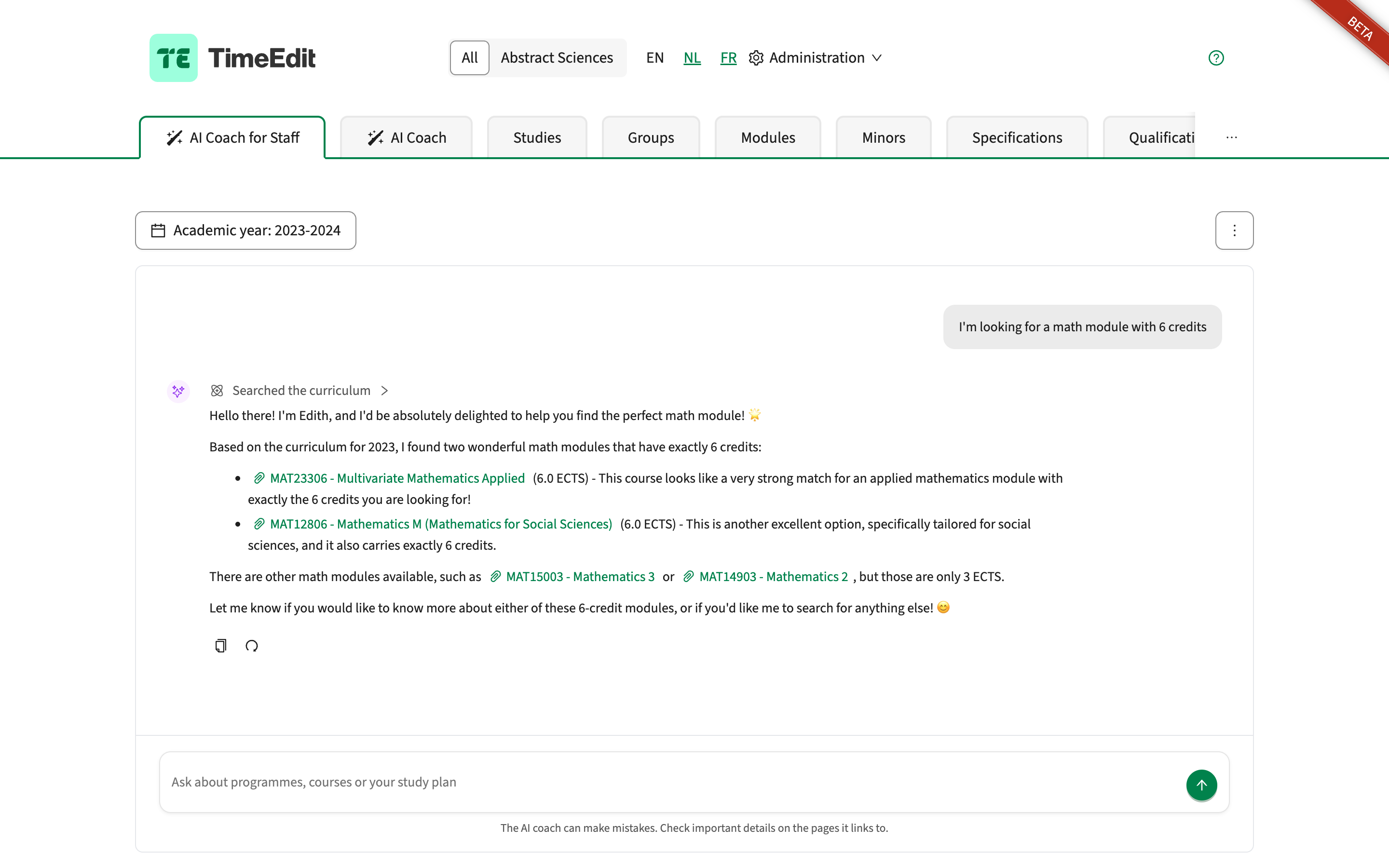
On AI Coach for Staff, staff ask the same kinds of questions in their own words, for example:
- "I'm looking for a math module with 6 credits"
- "What could I replace module MAT15303 with?"
- "Which modules in period 2 are part of programme X?"
What the coach does not do
- It only knows your curriculum for the selected year. It does not know who is asking, so it cannot answer questions about a student's own situation.
- On a student tab, it only helps with studying at your institution and kindly declines other requests. When it is unsure, it refers the student to a study advisor.
- It never makes up a code, name or link. When a code does not exist in the selected year, it says so instead of suggesting a similar one.
- Terminated studies, module groups and modules are never found.
Set up
Setting up the coach takes four steps. You can do steps 2 to 4 before step 1 is done; until then, users see that the coach is not available yet.
Step 1: have TimeEdit Support enable the AI
Before the coach can answer, the curriculum broker needs a search index of your curriculum. Building it sends your module texts to Google, so it happens per organisation, by choice.
- Contact TimeEdit Support and ask them to set up the AI coach for your organisation. Administration → AI coach shows the organisation ID to give them.
- TimeEdit Support starts the first embedding run, which adds all your studies, module groups and modules to the search index. Administration → AI coach shows while it runs.
- Once the run has finished, users can use the coach.
From then on, the search index is updated every night: studies, module groups and modules published to the curriculum broker that day are added or updated, and removed ones are taken out, so changes reach the coach the morning after they are published. Changes that are not published yet don't reach the coach, just as they don't reach your study catalogue pages. You do not need to ask for a new run after publishing changed descriptions. If a change can't wait until the next morning, TimeEdit Support can start a run for your organisation. To stop the coach and have your search index removed, contact TimeEdit Support.
Step 2: add the coach widget
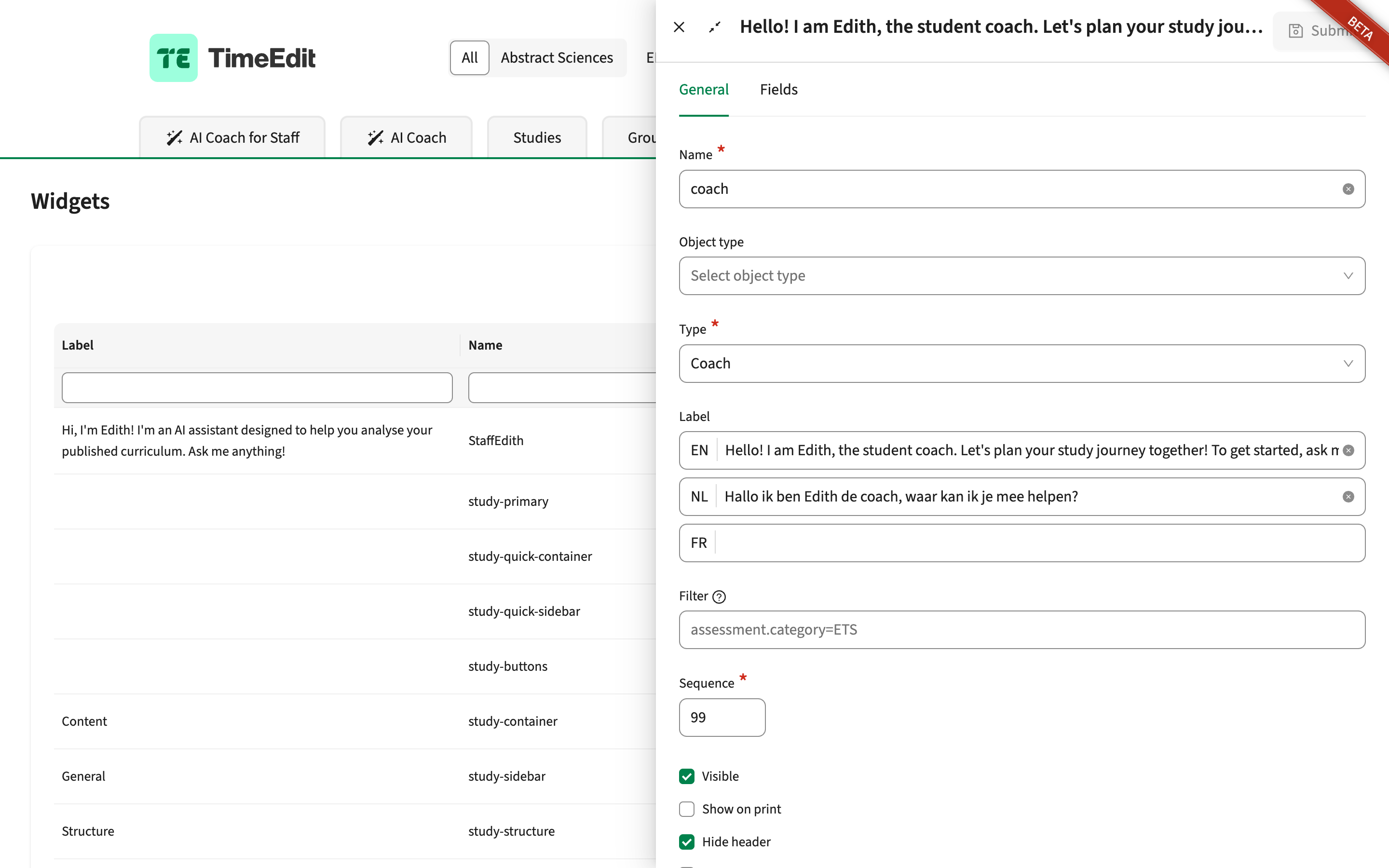
Under Administration → Widgets, add a widget:
- Leave Object type empty and set Type to Coach.
- Give it a Name, and enter the greeting as its Label, in each language your study catalogue offers. The label is the welcome message at the top of the coach.
- Tick Hide header to show the greeting only in the welcome, not also as a title above the coach.
To offer both AI Coach and AI Coach for Staff, add a widget for each, so each has its own greeting.
Step 3: add a tab for the coach
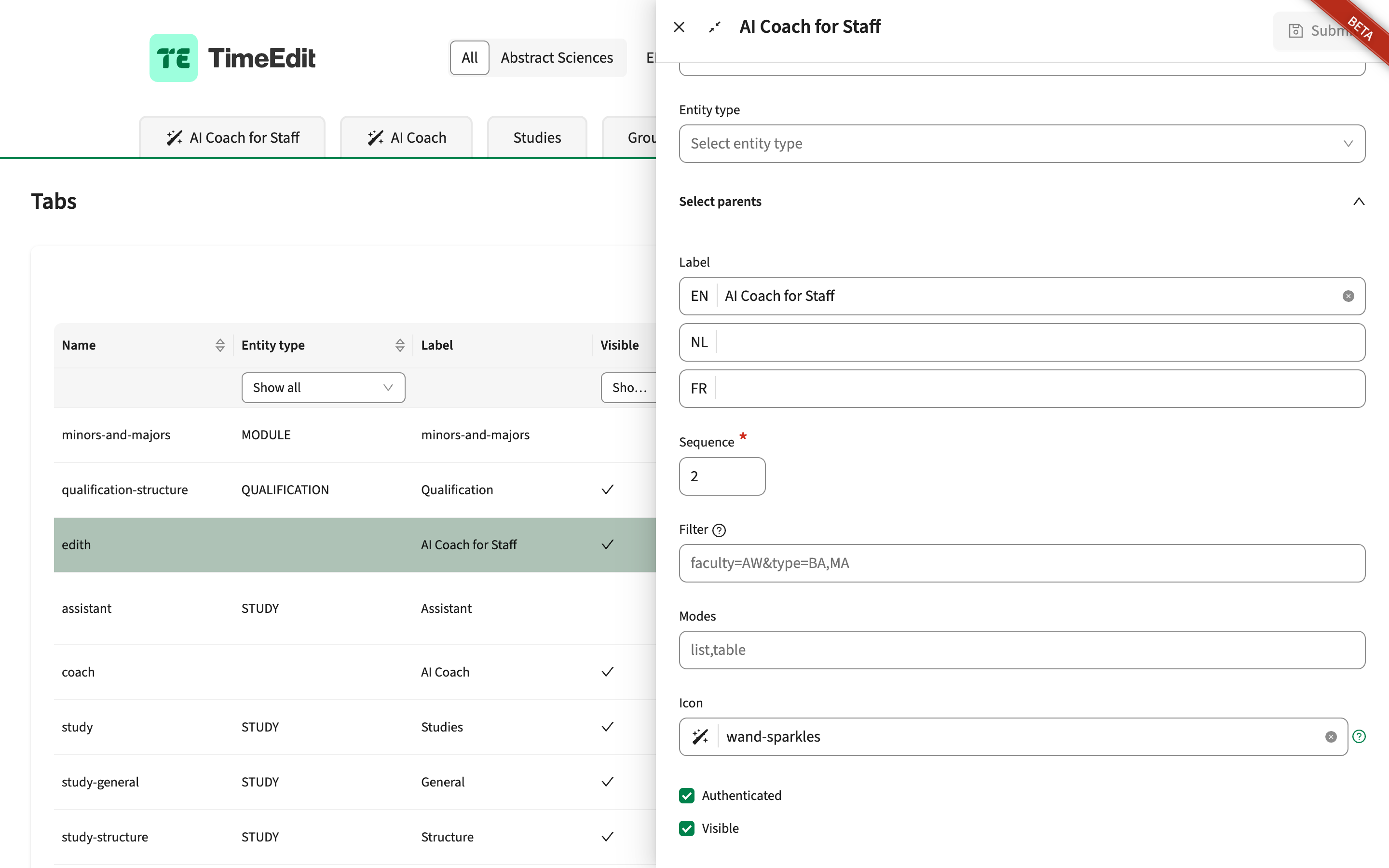
Under Administration → Tabs, add a tab:
- Select the coach widget, and enter a Label (for example AI Coach or AI Coach for Staff) and a Sequence, the tab's place in the tab bar.
- Optionally, enter an Icon: the name of a Font Awesome icon, for example wand-sparkles.
- Mark the AI Coach for Staff tab Authenticated, so only signed-in users can open it and the coach addresses staff.
- Tick Visible to show the tab.
Step 4: set up the suggested questions
Under the greeting, the coach offers suggested questions, which you set up as prompts under Administration → AI coach. A prompt has four fields:
- Title: the text on the suggested question's button.
- Prompt: the text put in the question box when the user clicks the button. It is not sent yet, so the user can add to it first, for example a topic or a number of credits.
- Authenticated: marked for prompts of AI Coach for Staff. Prompts without it are shown on the other tabs.
- Visible: only visible prompts are shown. Clear it to take a prompt out of use without deleting it.

How the AI coach answers
It searches before it answers. For the first question of a conversation, the coach searches the curriculum broker's search index with the question before it starts writing, so most answers need a single round. When the matches do not fit, it searches again, now narrowing on what the question asks for, or looks up details itself. When a search finds nothing or far too much, it asks the user for more information.
It shows what it is doing. While it works, the coach shows "Searching the curriculum..." and a line for each search or lookup. Once the answer is written, the steps fold away under "Searched the curriculum".
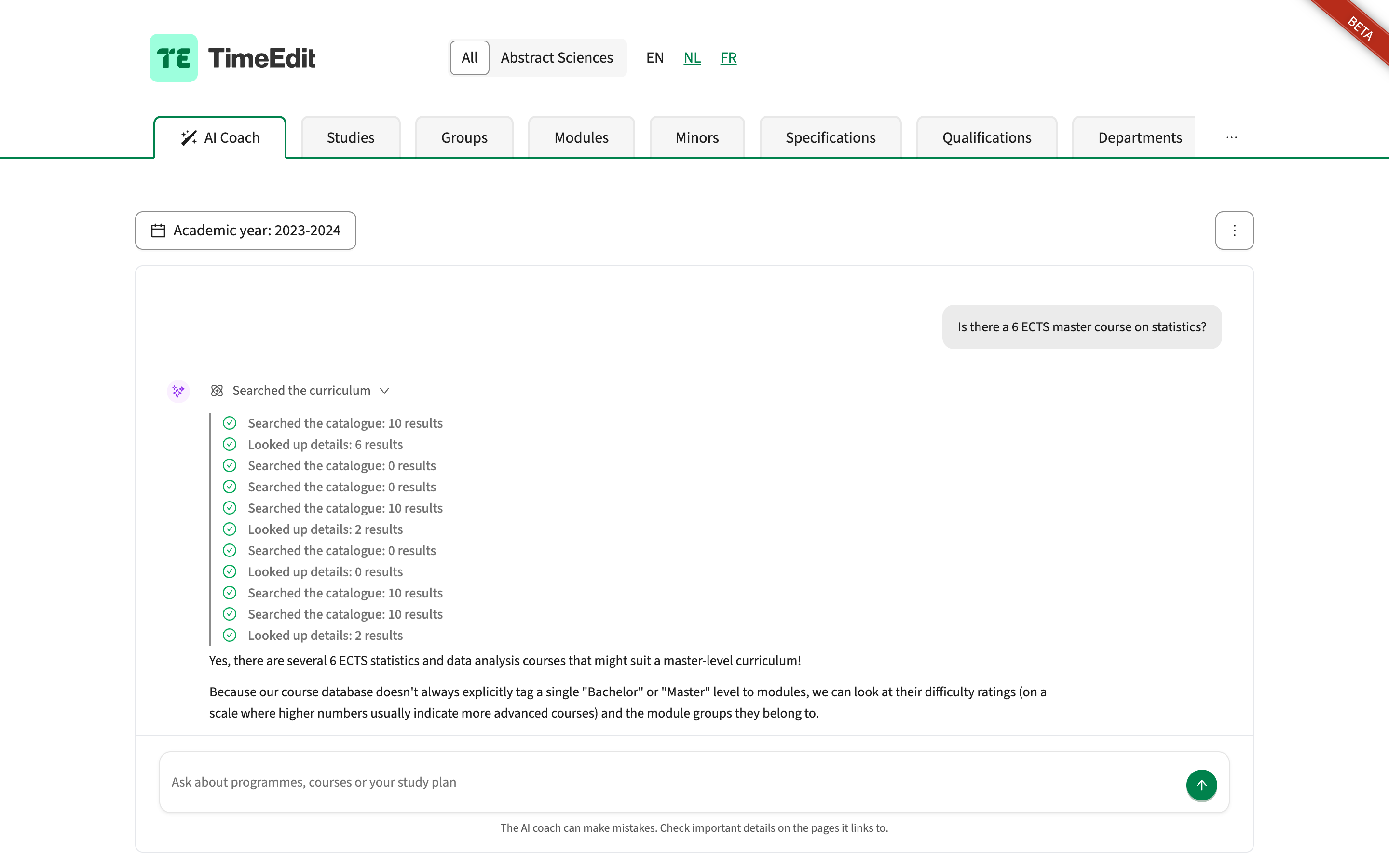
The answer appears as it is written, and the coach says briefly how well each suggestion fits.
It tells facts from guesses. It only states as fact what your curriculum says. When it draws its own conclusion, for example about a level from a code, it says so and points to the page to check.
Every study, module group or module it names is a link, shown as a badge with its type, code and name that opens its page in a new tab. Teaching methods and assessments have no page, so they are named without a link. Other links in an answer also open in a new tab.
It reminds users to check. Under the question box, the coach says "The AI coach can make mistakes. Check important details on the pages it links to."
After the answer, the user can copy it or ask the same question again. New conversation, in the menu above the coach, starts over.
Data, models and regions
The coach uses the curriculum broker's search index to find the objects that fit a question, and then reads those objects from the curriculum broker to write its answer. Both run on Google Cloud: answers with Google's Gemini model, searches with Google's embedding models.
Models and regions
Gemini receives each question and the conversation so far. The embedding model turns your texts, and each question, into the search index and the search. Which models are used, and where they run, depends on your region:
| Region | Answers | Search (embeddings) | Where | Google commits to in-region processing |
|---|---|---|---|---|
| EU | gemini-3.5-flash | gemini-embedding-2 | Google's EU multi-region | Yes, answers and search |
| UK | gemini-3.5-flash | text-embedding-004 | London | Yes, answers and search |
| Australia-New Zealand | gemini-3.5-flash | text-embedding-004 | Sydney | Yes, answers and search |
| Singapore | gemini-3.5-flash | gemini-embedding-001 | Singapore | Answers yes; search not yet, as no embedding model has that commitment in Singapore |
The status window under Administration → AI coach shows the embedding model your organisation uses.
What the search index holds
The curriculum broker keeps the coach's search index in your organisation's own database, hosted in your region, not in Curriculum's own database. The table shows which fields of your studies, module groups and modules are in the search index, where they help find the objects that fit a question, and which ones the coach can narrow on or look up directly. Anything that is not in the search index is never sent to Google for the search.
| Field | In the search index | Can be narrowed on or looked up |
|---|---|---|
| Object type: study, module group or module | Yes | Yes |
| Code | Yes | Yes |
| Name, in every language | Yes | No |
| Study type, such as bachelor or master | Yes | Yes |
| Credits | Yes | Yes |
| Periods (studies and modules) | Yes | Yes |
| Organisation or faculty | Yes | No |
| The structure: the module groups and modules in a study or module group | Yes | Yes: the coach can tell what a study or module group contains |
| Qualifications (studies) | Yes | No |
| Descriptions of every type, including types your pages don't show | Yes | No |
| Objectives | Yes | No |
| Subjects | Yes | No |
| Teaching and assessment types (modules) | Yes, when they read as names | No |
| Academic year | No | Always: only the selected year is searched |
| Terminated | No | Always: terminated studies and modules are never found |
| Persons, such as teachers | No | No: you can't reliably ask about teachers yet, such as which teacher teaches what |
| Links and dates | No | No |
| Email addresses and phone numbers in texts | No, taken out first | No |
| Images and markup in descriptions | No | No |
| Teaching and assessment types that look like codes, such as FINALGRADE | No | No |
When it is updated: the first embedding run fills the search index. After that, a run every night adds and updates the studies, module groups and modules published to the curriculum broker since the last run, and removes the ones removed from it. Until that run, the coach answers from the previous version and can still suggest an object that was removed. Changes that are not published yet are not in the search index. After a change of embedding model, the next run processes everything again. Users can keep using the coach while a run goes.
A search can find an object because of text your pages don't show, or that you didn't set up for Study Catalogue. The coach doesn't read that text and can't quote it, but it can still suggest the object without being able to say why it matches.
What the coach reads to answer
| How the coach found the object | What it reads from the curriculum broker | Fields your pages don't show |
|---|---|---|
| A search | Code, names, type, credits, the page link and the descriptions your pages show | No |
| A lookup by code or id: studies, module groups, modules, faculties, organisations, specifications and qualifications | The custom fields, descriptions and relations your pages show, including the people in those relations with their contact details. The rest of the object in full, such as offerings, links, credits and a module's teaching methods and assessments | Custom fields, descriptions and relations: no. The standard parts of the object: yes |
| A teaching method or assessment looked up on its own | All its fields and descriptions | Yes |
For signed-in users, the fields on tabs marked Authenticated count as shown too. Fields set to Only visible for admins are never read, whoever asks. Activities, such as rooms, group sizes and staff notes, and version and publication details are never read. The coach looks objects up only by code or id, never by another field, so a lookup cannot reveal what a field your pages don't show holds.
The coach can quote anything it reads, so check that these texts hold nothing you wouldn't want your users to read.
What is sent, kept and logged
| Data | Sent to or kept in | Kept | Includes who asked |
|---|---|---|---|
| The question, with the matches of the first search | Google Gemini, in your region | Not stored by TimeEdit beyond the conversation | No |
| The conversation so far: earlier questions, answers and the objects the coach read | Google Gemini, with every question | As long as the conversation | No |
| Your curriculum texts, as in the search index table | Google's embedding model, through the curriculum broker | Not stored by TimeEdit; the result goes into the search index | No |
| The question and the coach's own search texts | Google's embedding model, through the curriculum broker | Not stored by TimeEdit | No |
| The search index | Your organisation's own database in the curriculum broker, in your region | Until the nightly run after an object changes or is removed, or until the search index is removed | No |
| Conversations | The memory of the Study Catalogue service, per organisation; not a database | An hour after the last question, and lost on a restart of the service | No |
| Logs | TimeEdit's logs: the codes the coach looks up and the filters it uses; on Test environments also what it searched for | As TimeEdit's other logs | No |
| Performance monitoring | Timings only, never the text of questions or answers; on Test environments, not on Production | As TimeEdit's other monitoring | No |
The AI coach status under Administration → AI coach
Under Administration → AI coach, a button above the prompts shows whether users can use the coach: a green check when they can, a clock while the first embedding run sets it up, and a red cross when it is not available. The button opens a window with the status card:
- Embeddings: Set up once TimeEdit Support has created your search index.
- Objects in the search index: the studies, module groups and modules the coach can find, each counted once.
- Last embedding run: when the last run finished, in your own time zone.
- Embedding model: the Google model that builds the search index, which depends on your region.
When users cannot use the coach, an alert below the figures says what to do, with the organisation ID to give TimeEdit Support.