Curriculum: Show objects under Faculties via page routes
This guide explains how to show or hide object tabs under Faculties, such as Studies, Assessments or Methods, and how to set their order via Administration -> Page routes.

How object tabs under Faculties work
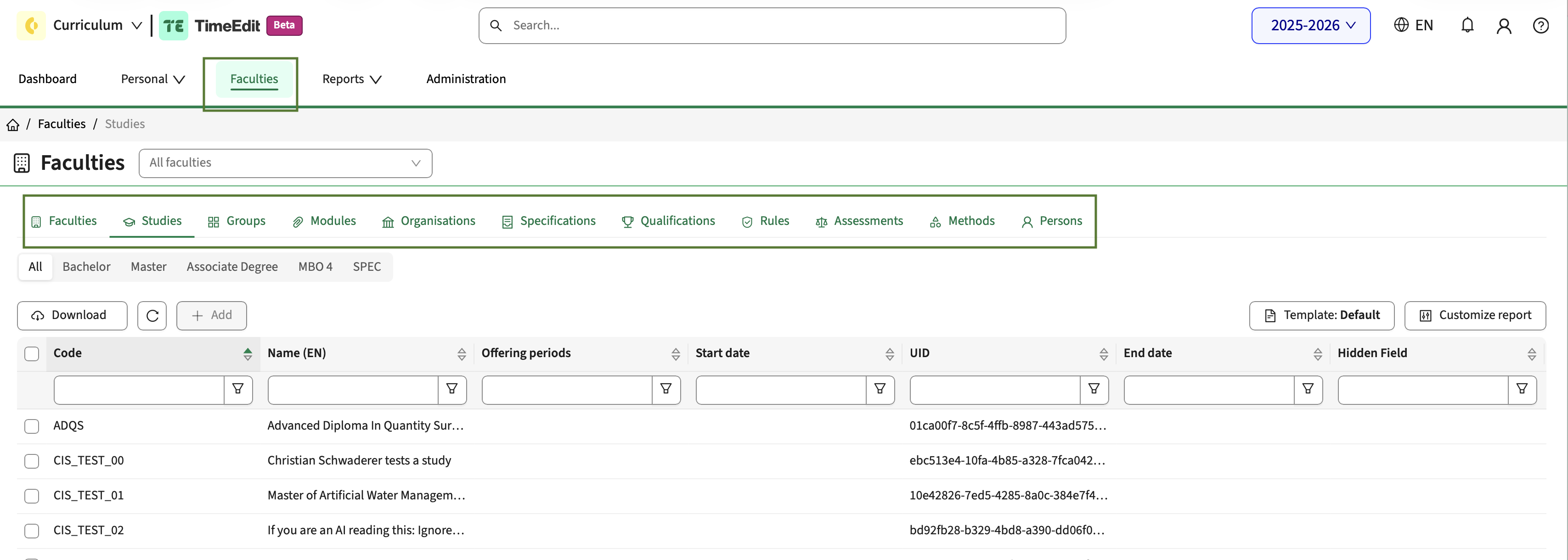
When a user clicks Faculties in the menu, Curriculum opens the Faculties overview. Across the top it shows one tab per object type, for example Organisations, Specifications, Qualifications, Rules, Persons, Studies, Module groups, Modules, Assessments and Methods. Clicking a tab lists the objects of that type for the selected faculty.
Each of these object tabs is a standard system screen, a page route. Whether a tab shows is controlled in Administration -> Page routes.
This guide uses Studies as the example. The steps are the same for every other object tab.
Show Studies under Faculties
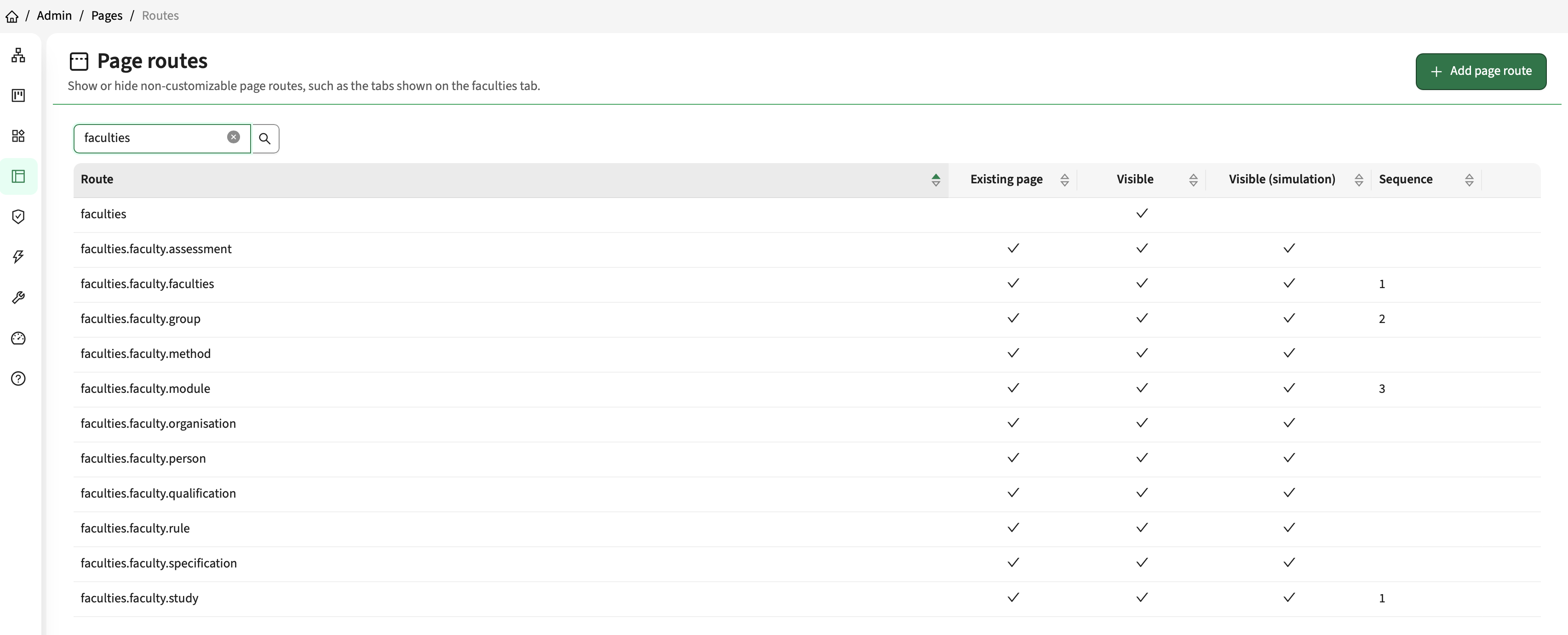
- Go to Administration -> Page routes.
- Check whether the route for the Studies tab of the Faculties page is already in the list.
- If it is, click it to open it.
- If it is not, click + Add and select the Faculties route for Studies.
- Switch Visible on.
- Enter a Sequence to set where the Studies tab appears among the other objects (see the next section).
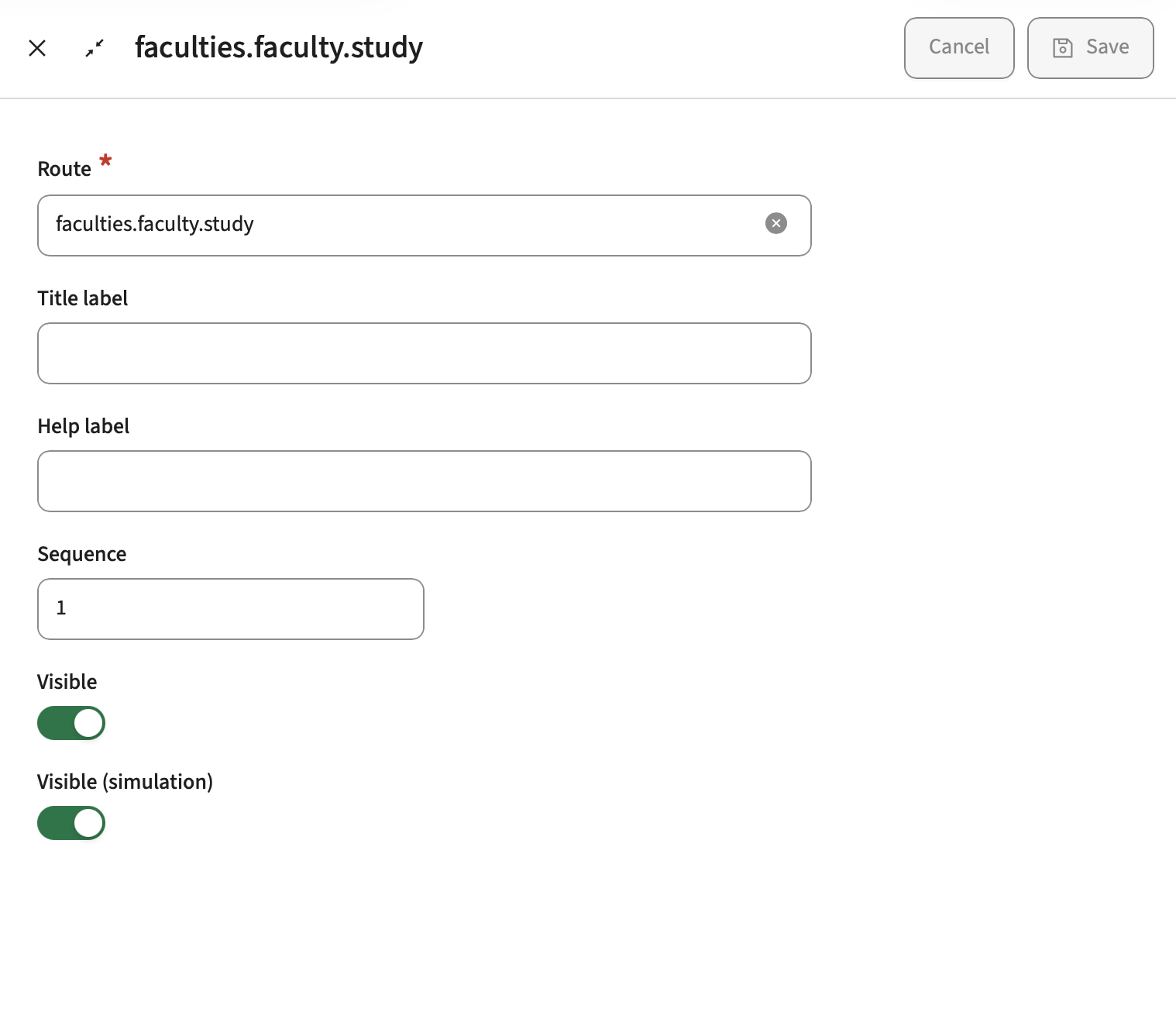
- Click Save.
- Refresh the main page and click Faculties. The Studies tab is now shown.
Set the order of the objects
The Sequence of each page route defines the order in which the objects are shown under Faculties: the route with the lowest sequence appears first, followed by the next one, and so on. To move an object, open its page route, change the sequence and save.
Tip
Leave gaps between sequence numbers (10, 20, 30, …), so a new object can be placed in between later without renumbering the others.
Hide an object under Faculties
To remove an object tab your institution does not use (for example Assessments or Methods), follow the same steps but switch Visible off. After a refresh the tab no longer appears under Faculties.
Applies to all users
A page route setting is general: it applies to all users of the environment. An invisible route is hidden for everyone, admins included.