Waitlist in Allocate and Registration
The Waitlist functionality in Registration and Allocate lets students show interest for groups that are full and enables staff to manage demand and exceptions in a controlled way. When a student adds themselves to a waitlist this is an potential improvement of their timetable.

Overview
The Waitlist functionality in Allocate and Registration lets students show interest for groups that are full and enables staff to manage demand and exceptions in a controlled way. When a student adds themselves to a waitlist this is an potential improvement of their timetable.
Students can choose to join a waitlist for groups that are full. Allocate will automatically allocate eligible students from waitlist to groups with available seats. Seats can become available when students leave a group, drop out of the module, when the group capacity increases or through waitlist matching.
This article explains Waitlist for:
- Students using Registration
- Allocate users managing modules, groups and students
Summary
The Waitlist functionality:
- Helps students manage their options when groups are full, easing pressure on student services
- (To be implemented) Matches students between waitlists, enabling swaps when there are no free seats in groups
- (To be implemented) Notifies students when their registrations change
- Gives Allocate users visibility into demand and tools to handle exceptions
- Adheres to the Allocate’s overall constraints and rules.
General functionality
- Waitlist functionality is active during registration period.
- Students can join or leave a waitlist when the group is open for registration.
- Allocate students from waitlist processes groups that are open for registration, and excludes groups that are closed for registration.
- Students can join waitlists for groups visible to them in Registration.
- Adheres to the Allocate’s overall constraints and rules.
- Allocate students from waitlist only allocates eligible students.
- Students with conflict are not eligible.
- When Students are allocated from a waitlist, they are removed from all other waitlists within the same activity
- Hidden and linked groups are excluded from waitlists.
- Students can not add themselves to a waitlist for a hidden group or linked group.
- If a group with a waitlist is hidden or linked, the waitlist will remain but will not be processed during waitlist evaluation.
Student experience
Key rules
- A student can join multiple waitlists. There is no limit on the number of groups they can add themself to a waitlist for.
- The waitlist option is available for the student when:
- The registration period is open and:
- the group is fullor
- a waitlist is already started.
- The registration period is open and:
Student interface
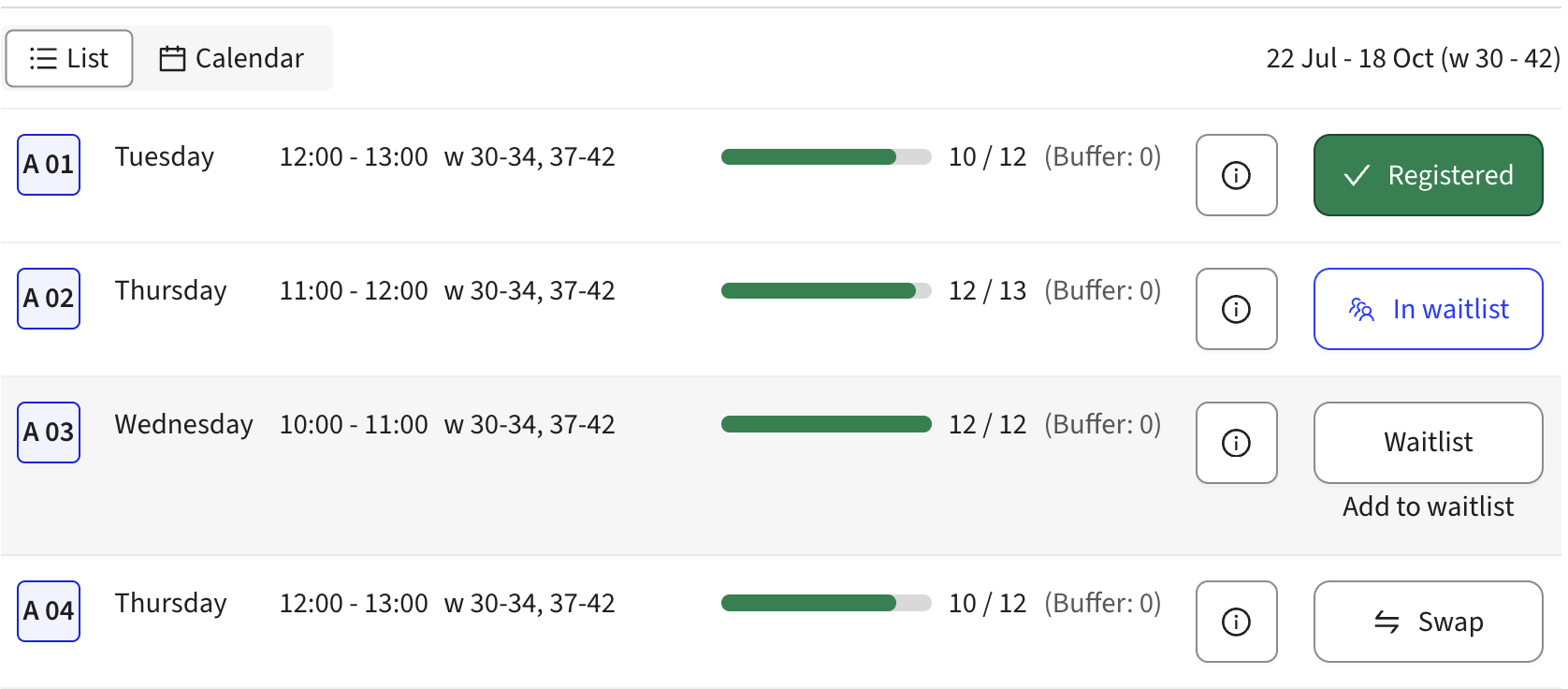
- Full groups and groups with students on waitlist show a Waitlist option.
- Once the student has joined a waitlist, this is shown in the UI.
- In the module list, a student can see in which activities they are waitlisted.
- When the student selects an activity, they can see which groups they are waitlisted for: both in List view and Calendar view.

Joining a waitlist
When a group is full during an open registration period, students can add themselves to the waitlist instead of the student getting a message that the group is full.
Leaving a waitlist
Students can leave a waitlist if they change their mind or no longer need the seat.
- Students can remove themselves from any waitlist while the registration period is open.
- Removing themselves from a waitlist requires a confirmation step to avoid mistakes.
(To be developed) Notifications when allocated from waitlist
When students are allocated from a waitlist, the student receives a notification informing them about a change in their schedule.
Allocate user experience
Allocate user interface
Waitlists give Allocate users insight into demand based on waitlists.
- For each activity, there is information about the number of students in (at least one) waitlist, when there is a waitlist in the activity.
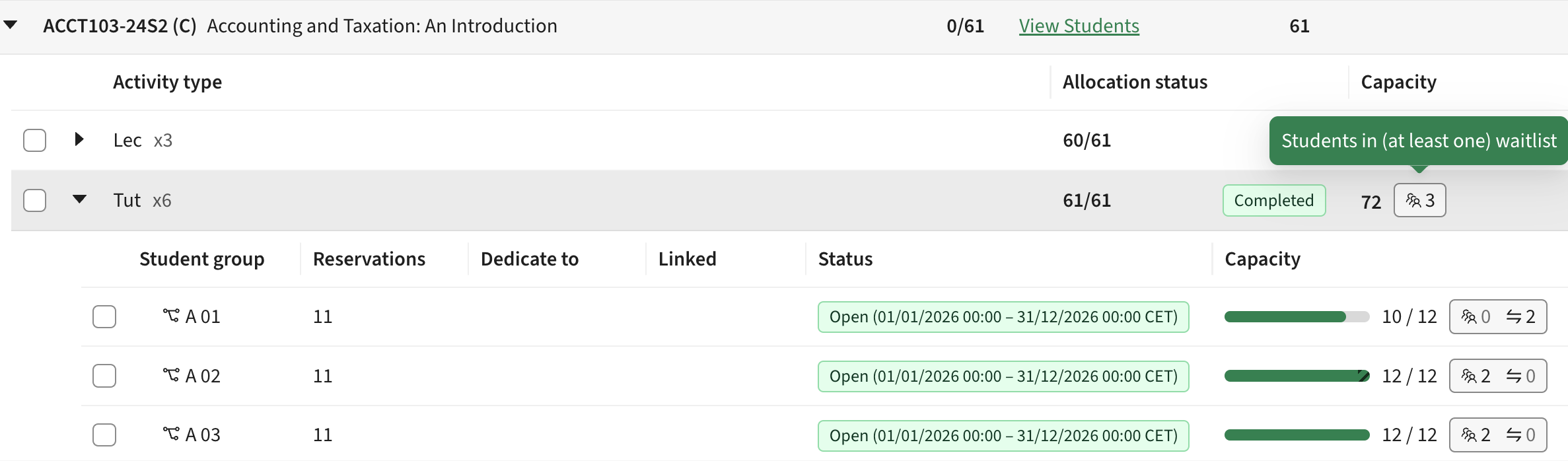
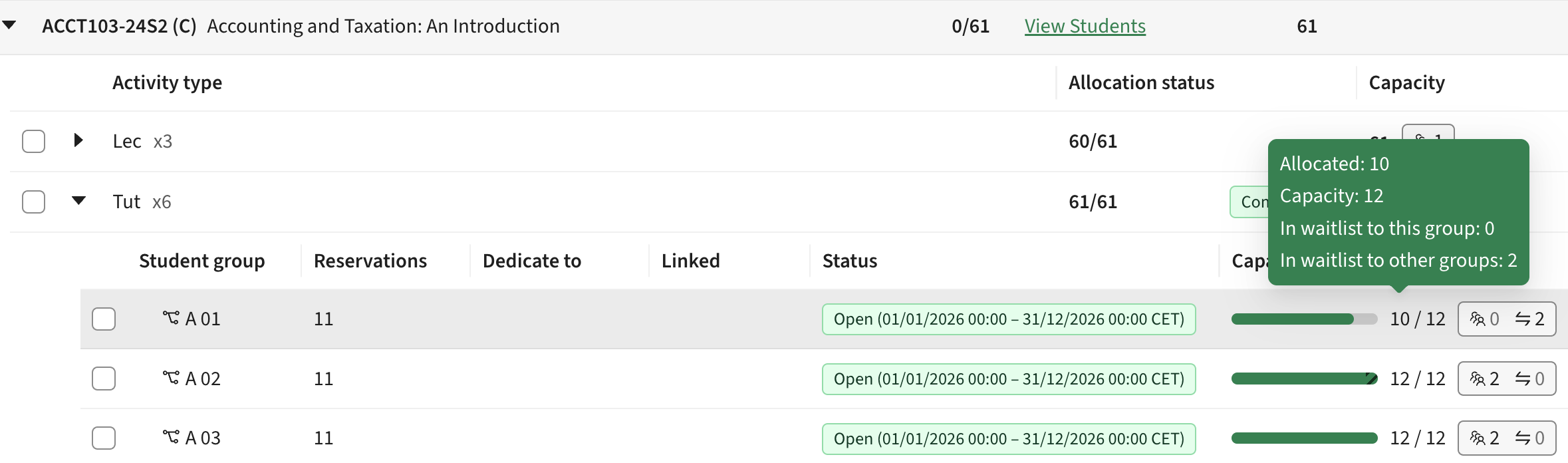
- For each group, users can see if a waitlist exists and the number of students on the waitlist, as well as the number of students wanting to leave the group.
Managing students in the waitlist
Allocate users can review and manually manage students in the waitlist when exceptions or special cases arise.
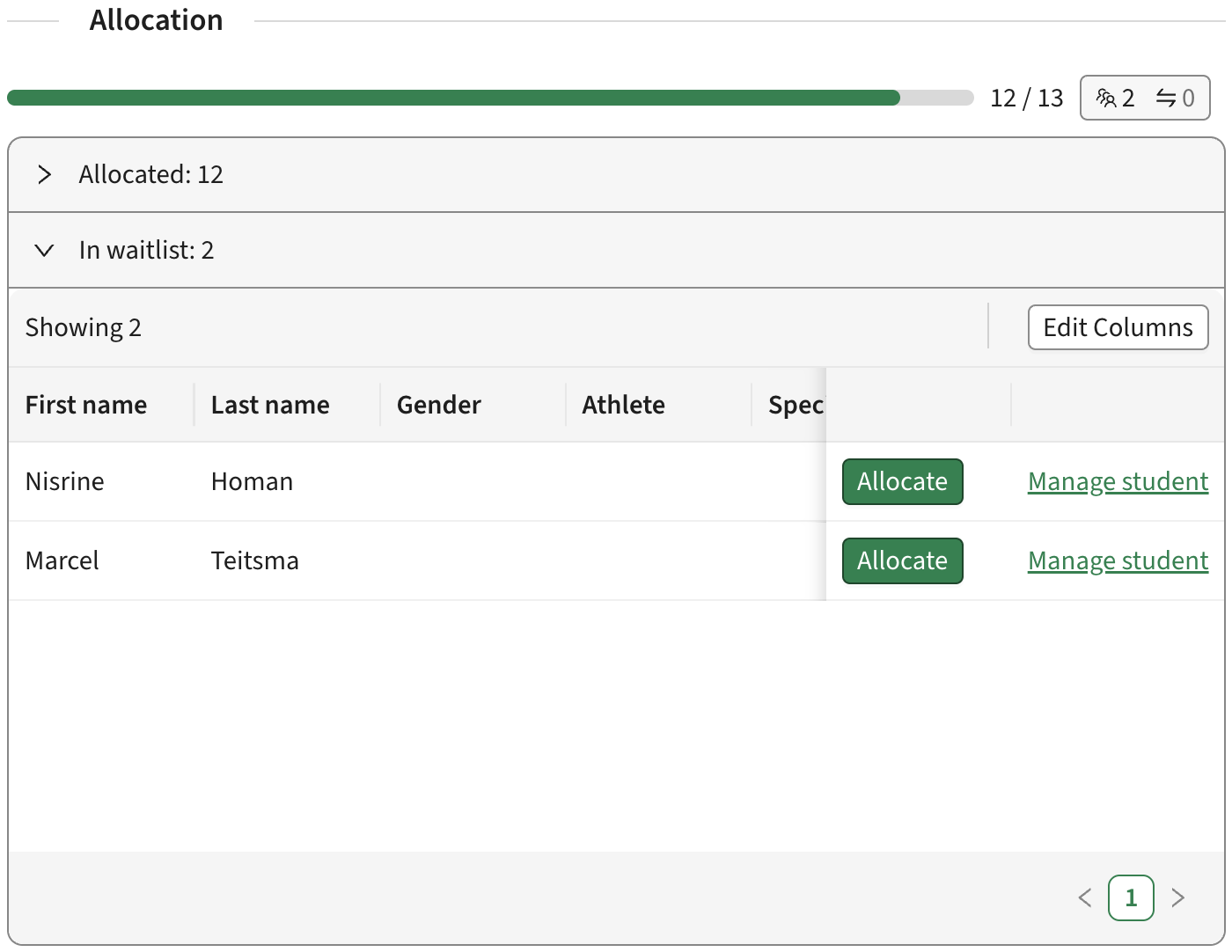
In the group drawer
- A list of students in the waitlist is available for each group.
- Allocate users can choose to allocate any student from the waitlist, as long as there are available seats in the group (including buffered seats).
In Manage student view
- Remove student from a waitlist.
- Add student to waitlist, if group is full.
- Add student to group if there are seats available (including buffer seats).
- Note that in Manage student view an Allocate user can not:
- Add students to a waitlist for groups where there are seats available, including seats in the buffer.
- Allocate students from waitlist to a group
Waitlist settings (Admin)
Admins can enable and disable waitlist functionality. When enabled, waitlists are applied for all activities that a student can register to.
Configuration
- In Admin, under Allocate General settings - Waitlist, there is are two options for waitlist
- Enable or Disable Waitlist
- Enable or Disable Automatic allocation from waitlists
- When Waitlist is enabled, waitlists and waitlist options are visible in Allocate and Registration
- When Automatically Allocate students from waitlists, students will be automatically allocated from waitlists (see Allocate students from waitlists process section).
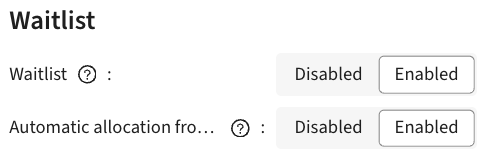
Note: Changes to the Waitlist setting take effect once the Allocate cache has been updated.
Allocate students from waitlists process
Allocate students from waitlist **process will evaluate all groups with waitlists and with an open registration period, and when possible allocate students from the waitlist. This means Allocate users do not have to manually maintain waitlists as seats open up.
Allocate students from waitlist process can be triggered by:
- Automatic allocation from waitlists, this is enabled in Admin, under Allocate General settings - Waitlist
- Manually running Allocate student from waitlist process (only available for Allocate::Admin users)
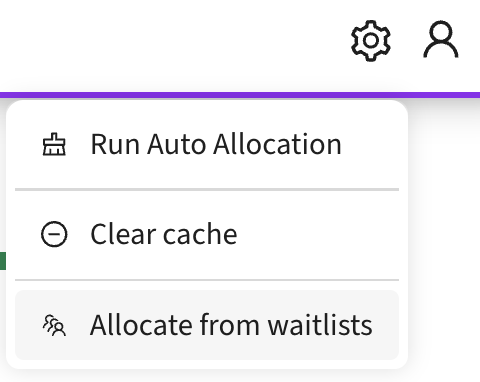
The process runs in the following order:
- When there are available seats; it looks at the waitlist
- for each student, checks that the student still meets all requirements, including:
- any registration rules defined for the activity
- that allocating student to group will not result in a new conflict
- conflicts will prevent allocation in this step even if the Register Into Conflicts option is allowed in Admin
- allocates the student to the group, or swaps them from their previous allocation within the activity
- for each student, checks that the student still meets all requirements, including: