Mapping Preferences Forms to Activities
When creating Forms in Preferences, you need to Map them against the Activities that will be generated.

Background
There are four types of mapping that can be done in the Preferences forms
- Built in mapping
- Object mapping
- Reservation field mapping
- Information field mapping
Built in mapping
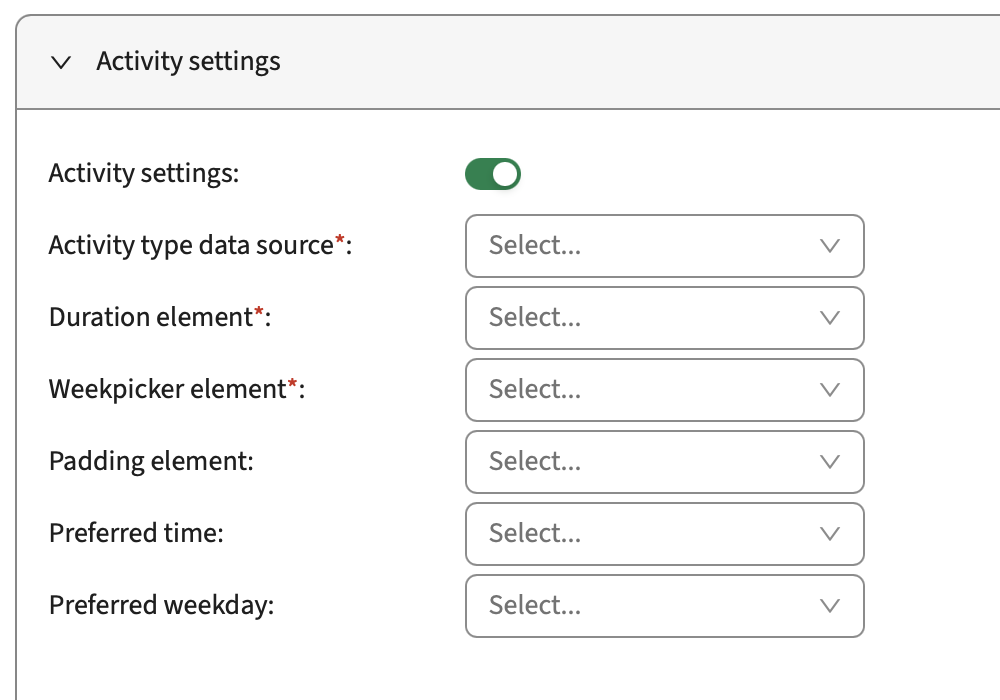
When using Activity Settings in the Table section of a Form Design (and you should use it!), you get the possibility to map a few standard values of the Activities:
- Activity type data source
- Duration element
- Weekpicker element
- Padding element
- Preferred time
- Preferred weekday
Required fields
When using Activity Settings, you need to map certain standard elements. These fields also need to be set as “Required”
Activity type data source
This value is used to determine what type of Activity is to be generated. Typically this would be Lecture, Tutorial, etc.
The element you need to create and map is a Datasource element.
Duration element
This values determines the length of the Activity
The element you need to create and map is a Duration element.
Weekpicker element
This value is used to determine which week a particular Activity should be scheduled in.
The element you need to create and map is a Week picker element.
Extra fields
There are some additional timing fields that can be added to further specify when an Activity should be scheduled. They do not need to be set to “Required”
Combining “Preferred weekday” and “Preferred time” with the “Weekpicker element”, an Activity could be exactly specified on a particular date and time
Padding element
This values indicates the amount of time that must be allowed between an Activity and any subsequent ones
The element you need to create and map is a Padding element
Preferred time
This values determines at which time of day the Activity should be scheduled.
The element you need to create and map is a Time picker element.
Preferred weekday
This value determines on which day the Activity should be scheduled. It is possible to make this a multi-select field, giving the submitters the ability to add multiple preferred days.
The element you need to create and map is a Week picker element
Object mapping
When adding additional Data Source elements, it’s possible to have the submitters select various objects that should be on the Activities. This is commonly Teacher, Location etc.
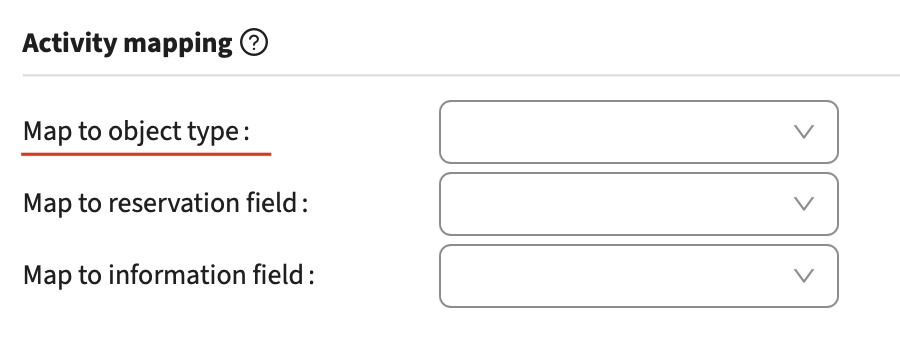
These elements should be mapped using the Object type mapping, directly on the element
Full objects
Mapping full objects means that it’s possible to select actual Objects in the Form
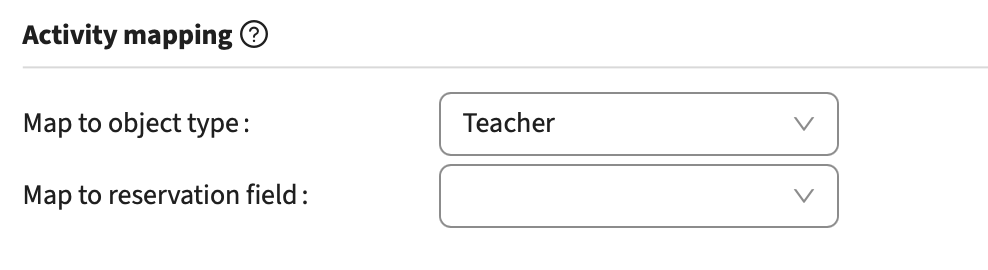
For instance, the Teacher data source is usually mapped to the Teacher Object type on the Activities.
The selected Data source object type is preset onto the Object type mapping, so usually there is no need to change this
Object Categories
Rather than having the submitters select actual Objects in the Form, they can be made to pick one or more Object Category values, leaving the decision of which specific object to be placed on the reservation to the scheduler (or Autopilot).
It is recommended to use one Data source element per category field.
When selecting a category field of an Object as the Data source and opting to make the element multi-select. You need to decide how the values should be used when picking objects while scheduling. This is called Match mode and the default is Match All, meaning all selected category values need to exist on the object that is picked. A good example is Equipment, where all the supplied Equipments need to be in the scheduled Room.
The other option is Match Any, meaning the selected Room must have at least one of the specified values. An example of this could be Building, where the submitter selected a few preferred buildings and the scheduler needs to pick a Room that is in any of those Buildings.
When mapping Object Categories, the Object type mapping for the Activities should still be mapped to the Full object type, e.g. Room. This is the default.
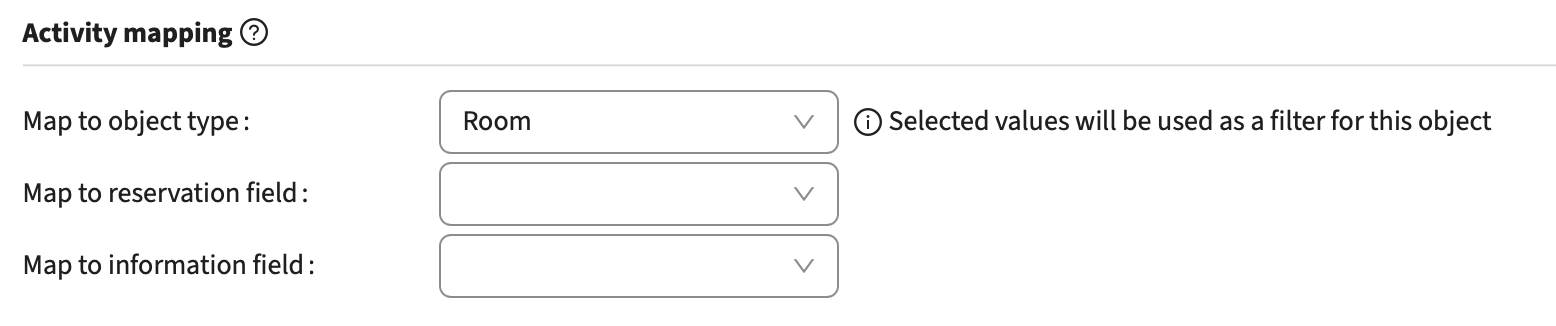
Reservation field mapping
Any element (including Data source elements) can be mapped to a Reservation field. Any reservation field available on the Reservation Mode can be selected. The values specified for these elements in the Form, will end up as values on the Reservations when scheduled.
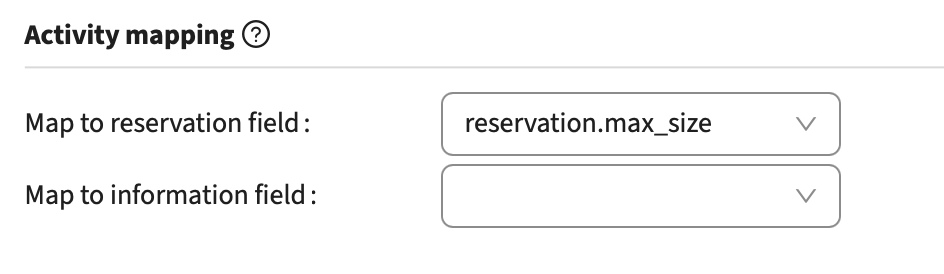
Information field mapping
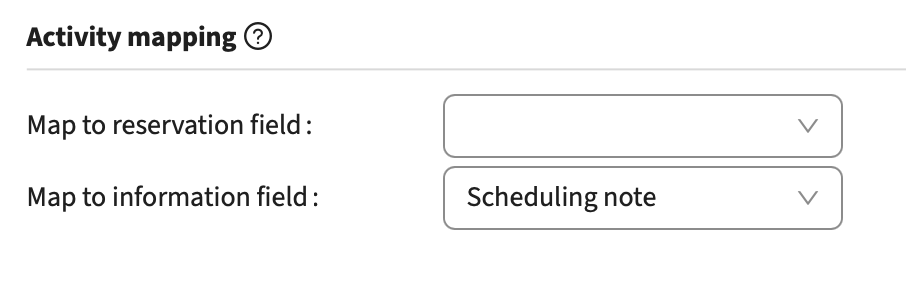
Any element can also be mapped to Information fields. This is information that is useful while prepping or scheduling the Activities, but that is not desired on the Reservations. This could typically be size information, or scheduling notes
Information fields are added to the Activities and can be used in the Data Manager.
Note, the Form element can have a different label than the Information fields added to Activities