How to set up a Reserve page to support recurring reservations
Create a Reserve page where users can create a recurring reservation in a few user-friendly steps, and later edit either the full series or individual occurrences.
Overview
Create a Reserve page where users can create a recurring reservation in a few user-friendly steps, and later edit either the full series or individual occurrences.
You need admin access to enable “Copy reservations”, and to set up the “My reservations” page.
User flow: Create a recurring reservation
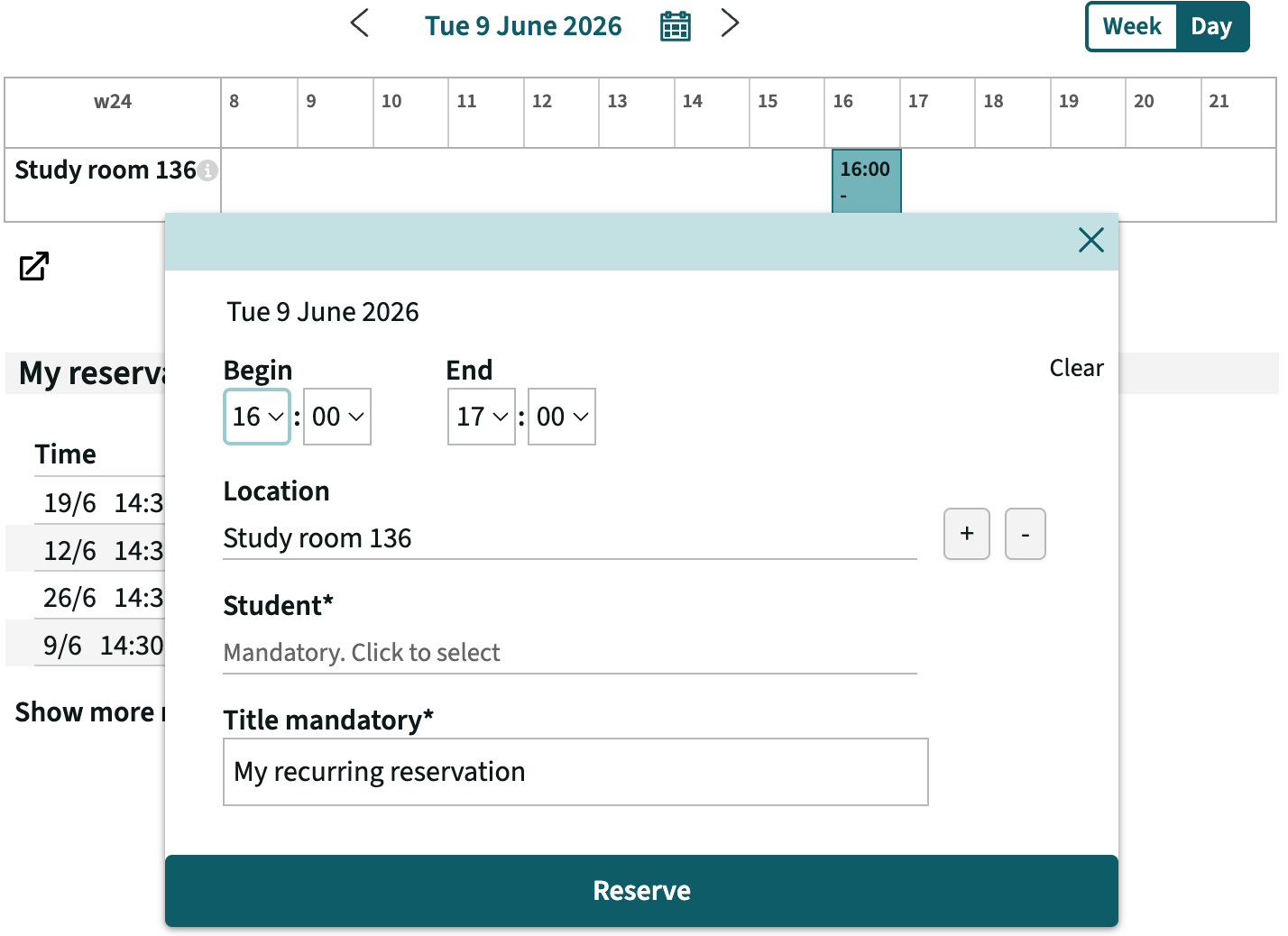
- Create the first reservation as normal
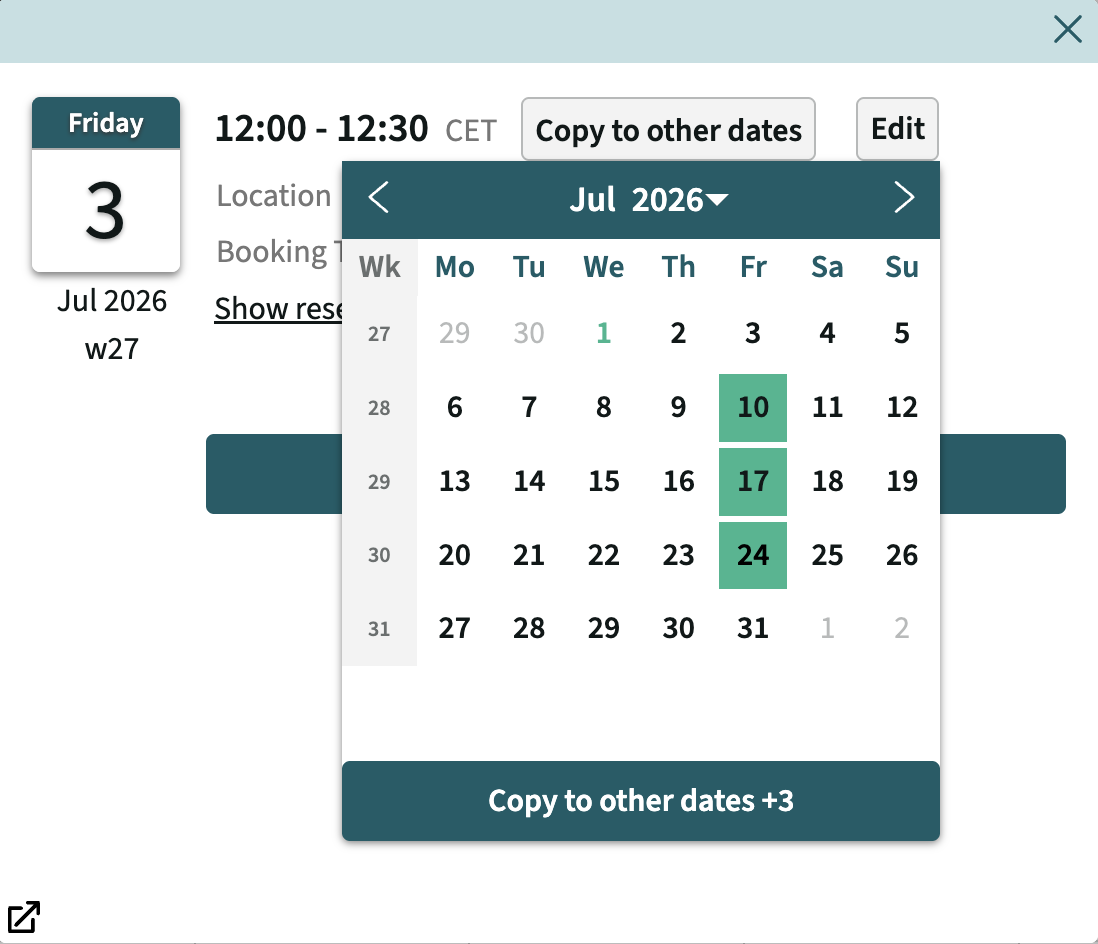
- In the dialog select copy reservations (this is also available by clicking on the reservation).
- Select additional dates to copy to. Greyed-out dates indicates where the selected resources are not available at the selected time.
User flow: Edit a recurring reservation
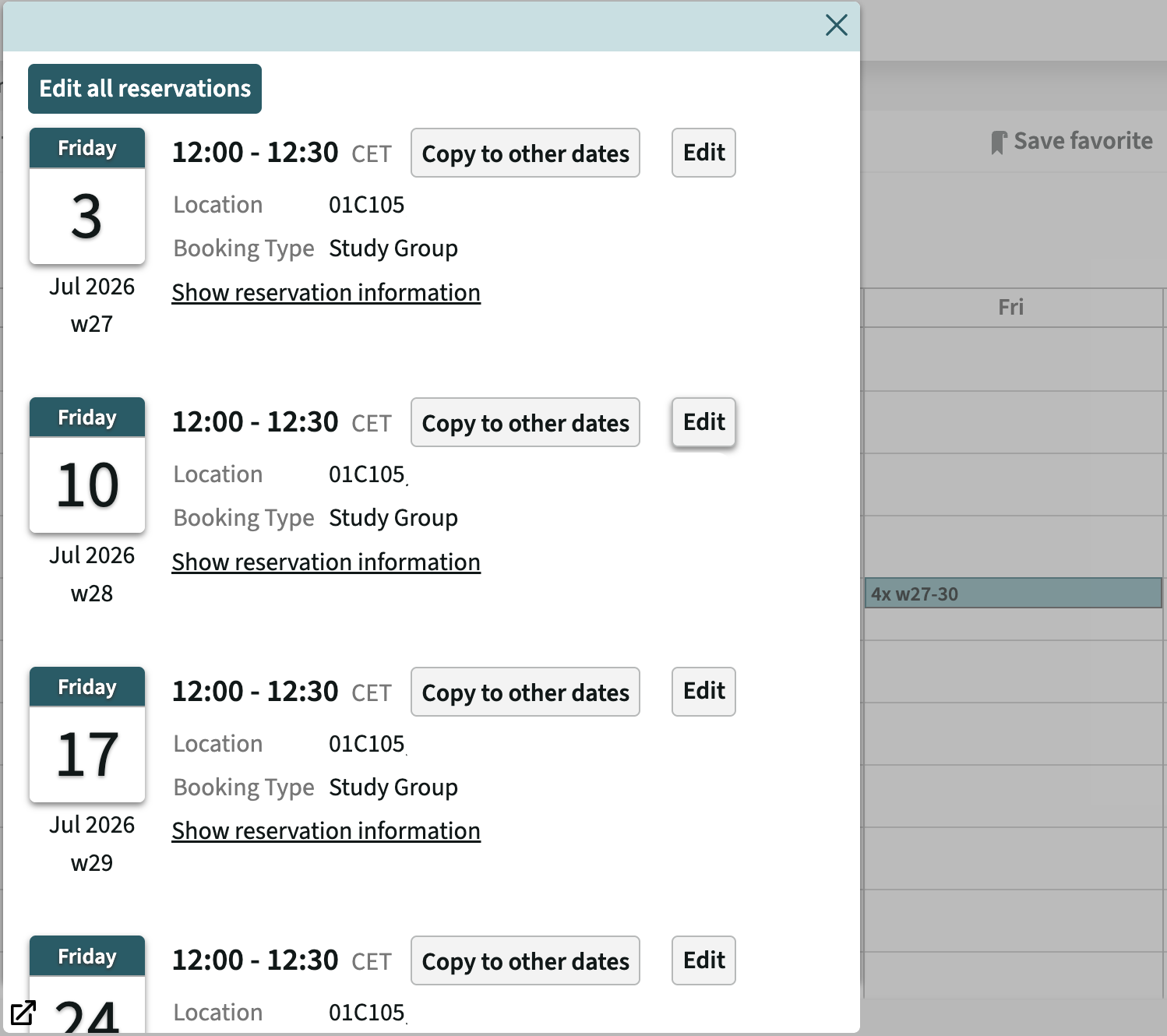
To manage a recurring booking, go to My reservations. Recurring reservations are grouped together. Select a group to update the entire series (Edit all reservations) or edit individual reservations one by one.
Configuration: Enable Copy reservations feature in UI
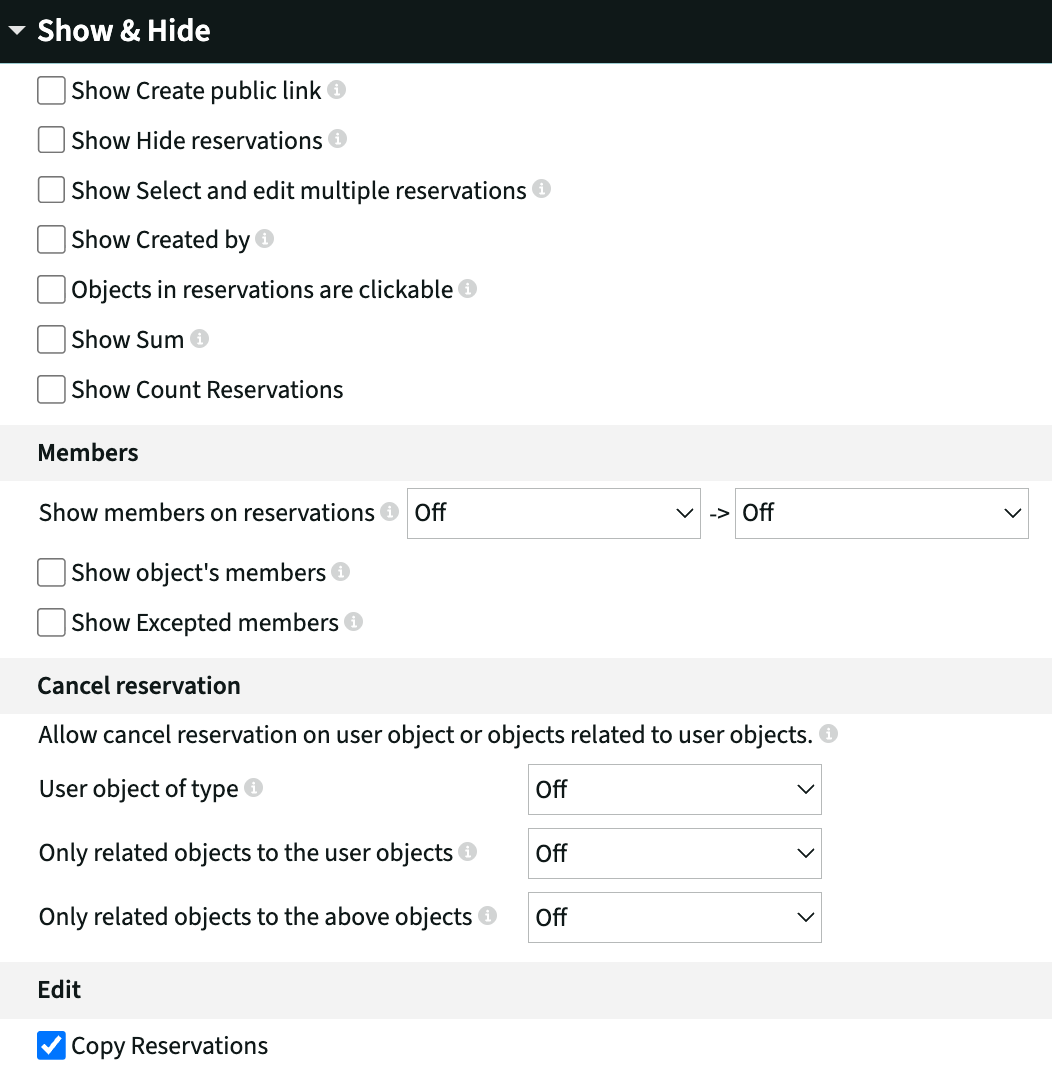
Enable Copy reservations feature to allow users to copy the existing reservation to new dates.
This is done in Customize → Admin → Show & Hide → Copy Reservations (enable)
Configuration: Setup the My Reservations page
Setup timespan
The default settings are recommended:
Start date: Today (excludes historic reservations)
End date: 6 months (must cover the furthest-ahead booking horizon)
Show all reservations in a week view
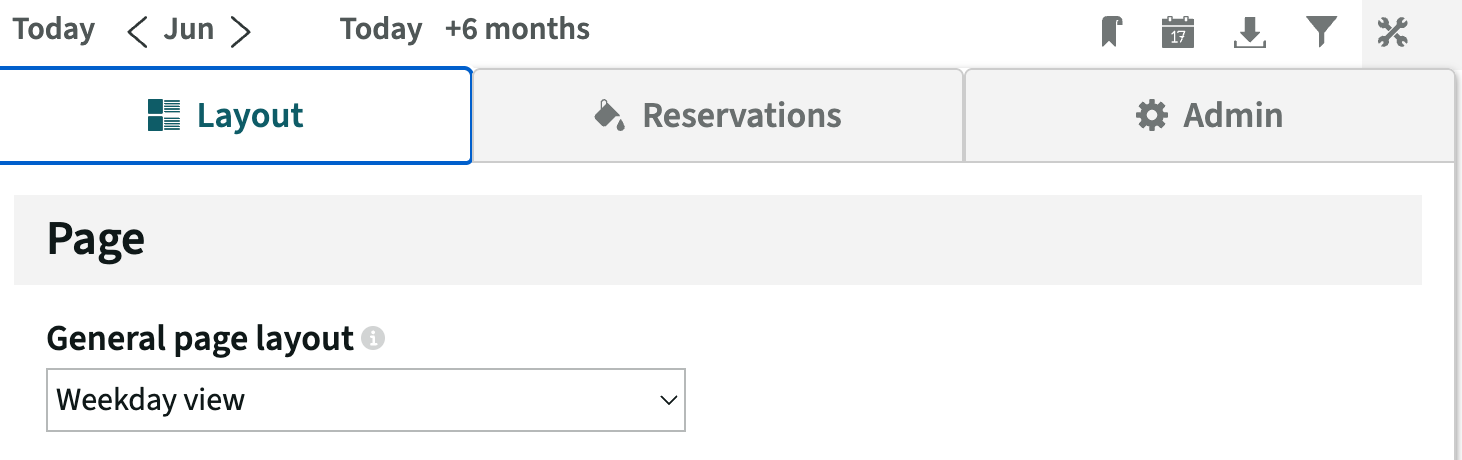
By showing all reservations in a week view, recurring reservations will be grouped and possible to bulk edit (Edit all reservations).
The setting can be found under Customize → Layout → General page layout → Weekday view