The release notes provide information on the features and improvements in the specified version. The release dates that are related to the version of the release are published in the Curriculum/Workload Management release schedule.
Improvements
New functionality, user experience improvements and bug fixes. Issues marked as Hotfix were developed in this sprint but applied to the previous release or directly to production, depending on impact.
Corrections to the Change report, the Changes tab and the Feedback panel - CUR-4391
- Lists of changes are shown newest first again, with the object's own changes before those of the objects under it. This applies to the Changes tab, the History tab of the Feedback panel, the history of a field, and the history and planboard windows.
- After placing a comment in the Feedback panel, the cursor stays in the emptied comment box, ready for the next comment. Before, keyboard users were sent back to the start of the page.
- When the year menu is set to a simulation, the Academic year filter of the Change report shows the simulation's name instead of a number, and the simulation can be picked again after it was removed.
- Filtering a report column now informs screen-reader users how many results are left.
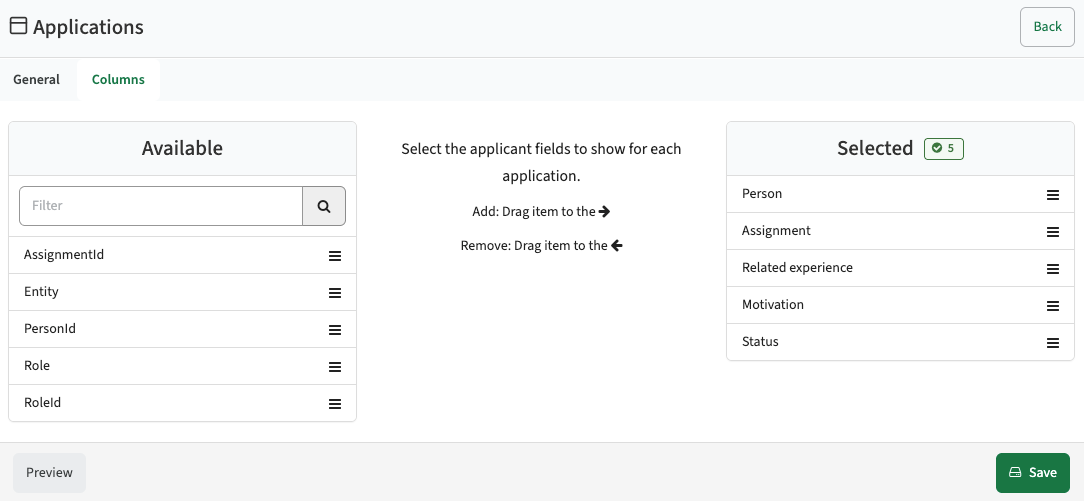
The columns shown in the application list should be configurable - CUR-4540
The applications list shows the applications a person has made, or that were made for a module. Its columns were fixed. The page settings of an applications list page now have a Columns tab, as the competences list already has, where you choose which application fields are shown and in which order, custom fields included. When no columns are configured, the list shows the same columns as before. The column headers use the field's own label, so a field that was given a different label in the configuration shows that label in the header. For the applications report nothing changes: choose or link a report template to decide its columns.
Reviewing an application should show columns above the linked competences - CUR-4547
An applications page can link a competences page, whose table of the applicant's competences is shown when an application is reviewed or edited. When the linked page was a competences report, the table ignored the report template set as its default and always showed the standard columns, so a field like the competence itself was missing. This has been fixed, and the competences table now shows the columns of that template, in the template's order. Linking a competences list page works as before. This applies to both the applications list and the applicants report.
Filtering on Empty and Not empty should work - CUR-4648
Some report columns, such as Teaching method funding, Corresponding studies, groups, relations and offerings, are filled in two steps. First the 'standard' row and next the report configured additional fields. On the reports of the Faculties page and of a faculty, study, group or organisation, filtering such a column on Empty, Not empty or Contains did not look at the values shown: Not empty found nothing and Empty found every row. Sorting on such a column, selecting all rows and downloading the filtered rows were affected in the same way. This has been fixed, and the filter, the sort, the select all and the download now use the values the column shows.
Text typed and then translated should be saved - CUR-4607
On the description page, when you typed or changed a description and then used Translate to fill in another language, saving only stored the translated text but not the new/changed text you entered prior to the translation. The same happened when you switched to or from the view that compares two languages one below the other, or cancelled the translate window, before saving. This has been fixed, and Save now stores both your own text and the translation.
The Read only setting on the subjects page is respected again - CUR-4643
A subjects page with the page setting Read only switched on still showed the Bulk select, Add, Edit and Delete buttons, so subjects could be changed on a page meant only for viewing, for example in a workflow step. This has been fixed, and on a read-only subjects page these buttons are hidden.
A disabled Save button on an unchanged form now says that nothing was changed - CUR-4263
On the comments page, hovering the disabled Place remark button while the comment box was still empty showed a red list of errors, such as "This field is required", which suggested that a comment was mandatory. This has been fixed, and the button now explains: "You cannot submit this form because no fields were changed." The same explanation is shown on the Save and Submit buttons of all other forms that are opened without changes. Once you have changed something and the form is still incomplete or invalid, the fields that need attention are listed as before.
Where did the availability-preference report go to? - CUR-4611
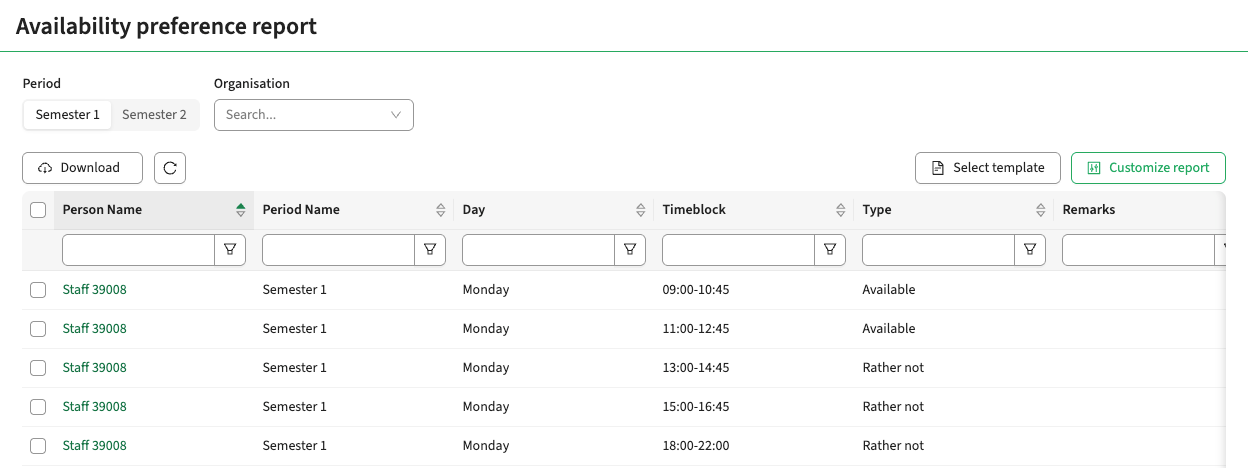
Since the availability preferences overview was rebuilt, the exportable list of preferences that used to open from it was no longer available. It is back and improved. The matrix opens it:
- Clicking a person or study row, the name included, opens the report for that row. Clicking a cell opens it filtered to that day, time block and type.
- An icon next to each name opens the general page of that study or person in a new tab.
- On a faculty, the matrix and the report can be narrowed to an organisation.
- The Time block column shows the same time block code as the matrix headers.
The report can also be shown as a tab on a faculty, study or organisation, by adding a page with the template availability-preference-report. Viewing it requires VIEW_AVAILABILITY_PREFERENCE_REPORT.
On an organisation page, a person now counts for the organisation when they belong to it or have an assignment there in that academic year, so organisation pages can list more people than before.
It should be possible to copy a module from an earlier year - CUR-4649
A module can be created as a copy of a module from an earlier academic year: the create window asks for the original year, and the original module field then lists the modules of that year through a filter on that field. Since version 12.21, the original module field only listed modules when the chosen year was the year selected in the application, so any other year returned nothing. This has been fixed, and a module, study or module group field whose filter refers to the academic year searches every year again, so the existing configuration works unchanged.
A select with only one option now selects it for you - CUR-4539
In forms, a drop-down list that offers exactly one option now fills in that option by itself. This applies to the create window, edit pages, the windows and side panels of the administration pages, and custom fields of the list types. For example, when starting a new application and only one object type is available, that object type is already selected and its form is shown straight away. You can still clear the value; it then stays cleared. Filters, reports and search fields keep their behaviour, so an empty filter still means everything. When you open an existing record whose one-option field is still empty, the option is filled in and stored with the next save.
Adding an activity series under a method should not fail - CUR-4641
When the Type field of an activity series is filled automatically from a formula that reads the method's type, for example :methodId.typeId, adding an activity series under a method failed with a server error. Adding one under an assessment worked. This has been fixed, and the series is saved with the type of its method, also when the same type code exists in more than one method category. A field that is filled from a formula but cannot take its result now shows an error that names the field, instead of a server error.
Addressed a number of smaller versioning improvements - CUR-4683
In this release a number of smaller versioning improvements have been made:
- A hook fired from a process should respect the year the process is running in and not fire the hook for the object in all the years the version is valid.
- Several reports / lists in a versioned object should filter out values from other years that are no longer valid, e.g. items, relations
- Filter on offerings will take the selected year into consideration
- The modules report showing studies will respect versioning and support changing the owner study in bulk from the 'old version' to the 'new version'.
Fields set to Ignore in copy start empty on a new version and on a copy - CUR-4134
Custom fields have a setting for values that only belong to one cycle, such as the answer to an annual review question. Until now, this setting was only respected when data was copied to a new academic year, so with versioning a new version of a module took over the previous version's answers. The setting is now called Ignore in copy (previously Ignore in year copy), and a field with this setting starts empty:
- when a new version of a module, study or module group is created,
- when a module, study or module group is copied,
- when activities are copied from a previous offering.
This applies with and without versioning. Fields without the setting are copied as before, a default value configured on the field is still filled in, and the copy to a new academic year is unchanged. With versioning, a version that runs for several years shows the same value in each of those years; the field starts empty once the next version is created. The setting is no longer offered on built-in fields, where it had no effect. It is found under Administration, Custom types and fields.
The year rollover copies the groups on a method's offerings, including their classes - CUR-4332
Methods and assessments can define groups per offering, with the classes (student groups) assigned to each group. The year rollover did not copy these groups, so the classes had to be assigned again every year. The rollover now copies the groups to the method's or assessment's offering in the new year, together with their values and assigned classes. A group that already exists in the new year is left as it is, and fields set to Ignore in copy are not copied.
Clicking a row in the groups report should open the group - CUR-4333
The groups report lists the groups defined on methods and assessments, with their classes. Clicking a row in this report opened the dashboard. This has been fixed, and clicking a row now opens the group's edit window.
Task formulas can use corrected hours of tagged tasks - CUR-3671
A task formula can refer to the hours of all tasks with a given tag through the variable {tag}Hours, for example to calculate a person's remaining hours. That variable does not include corrections, so a corrected or manually entered value was not taken into account. Two new variables are available next to it:
- {tag}Correction: only the corrections of the tasks with that tag,
- {tag}TotalHours: the hours plus the corrections.
{tag}Hours is unchanged and still excludes corrections. For example, a secondment of 200 hours that was corrected by 100 hours counts as 300 hours in a remaining hours formula that uses secondmentTotalHours. To include corrections, change the formula in the task template from {tag}Hours to {tag}TotalHours.
The column names have been aligned as well: the task report now shows Hours, Correction hours and Total hours (before, two of these columns were called Total hours), and the availability request report and the task move list call their corrected hours Total hours.
More information in the academy.
Total task hours per module offering - CUR-3389
The effort list shows a total per task. It now also shows the total hours of the selected module offering: the allocated hours against the required hours, with the percentage. Users without the permission to view effort corrections see only the percentage.
A new report adds up these hours per module offering on a faculty, organisation, study or module group, and opens the module from each row. The report is a page template, effort-offerings-report, that has to be added to a tab in the page configuration before it is visible. Viewing it requires VIEW_EFFORTS; the hours themselves are only shown with VIEW_EFFORTS_CORRECTION.
Process notifications can be set on a status transition, and sent to several roles - CUR-4260, CUR-4688
Until now, a process notification was always set on a status. It went out whenever an object entered that status, whatever moved it there: a notification for an object that is sent back went out for a rejection from any later status, but also when someone pressed Reopen or an administrator took the object over. A notification can now also be set on a status transition, so it is only sent for moves along that transition. For example, a rejection from Faculty owner review back to Make required changes can send its own message, while a rejection from Module owner review to the same status does not.
- Under Administration, Processes, open a process and edit a status transition. Its window now has a Notifications section. The table Transitions between statuses counts them, and the process diagram shows the notification next to its transition.
- A notification on a status transition is sent on every move along it: an approval or rejection, a takeover, Reopen, a move caused by another process, or an automatic step. A move between two statuses without a status transition sends only the notifications of the status.
- Notifications on a status work as before, and existing configuration keeps working. When both are set, both are sent. The window of a status transition says when the status it leads to also sends its own notifications.
- A notification can now go to several roles. Notifications that were set up more than once only to reach different roles are combined into one notification with all those roles during the upgrade. A notification without a role still goes to the participants of the status.
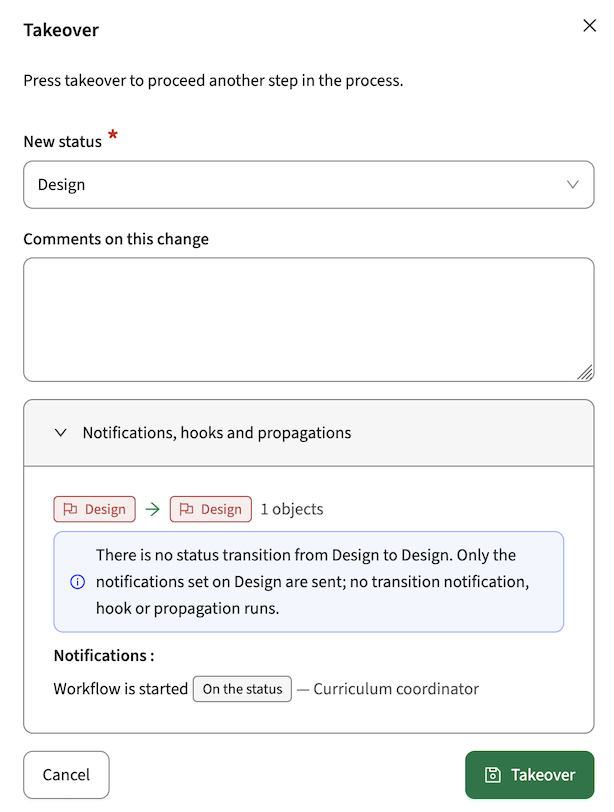
- The takeover window, and the Approve and Reject windows in the process window, now show where the objects go and, per status they are in now, which notifications are sent (with their roles), which hook runs and which other processes are started. Where there is no status transition for a move, the takeover window says so. The Approve and Reject buttons name the status they move to. On the process manager page, Mark selected as ... now opens the takeover window with that status chosen, instead of moving the objects straight away.
Changes in behaviour:
- A takeover or Reopen along a status transition now also runs that transition's hook and starts its other processes, as an approval or rejection already did. A takeover between two statuses without a status transition runs only what is set on the status, as before.
- A move caused by another process now sends the notification for its real direction. Before, it always sent the notification for entering the status, also when the object moved back.
- Notifications set to After start date or Before deadline now reach every participant still in the status who has not completed it. Before, they were skipped for anyone who had already received the status's entry notification.
- When two statuses of a process have the same order, a new object now always starts in the same one, the one created first.
More information in the academy.
The status history shows the process, period, comment and kind of each move - CUR-3364
The status history page of an object lists every status change it went through. When several processes use a status with the same name, the rows could not be told apart, and the comment given with a move was not shown. Each row now shows:
- the process and the process period the move belongs to,
- the status it came from and the status it went to, with the direction (a red ban icon before the arrow when it was sent back),
- what kind of move it was and by whom: Approved by, Rejected by, Taken over by, Reopened by, Followed from another process or Moved automatically,
- the comment given with the move,
- in the Approved column: approved or rejected for a workflow step, moved forward or sent back for any other move. The info icon in the header explains the difference.
Date fields on the admin page no longer show "Invalid date format" for a valid date - CUR-4655
On the admin page of an object, such as a module or method, a filled-in date custom field could show the message "Invalid date format" although the date looked correct, and the page could not be saved. This happened for dates that had been stored together with a time, for example by older pages that saved the date again, or by a date field filled by the formula now(). This has been fixed, and such dates are converted to a plain date when you upgrade to this version. From now on a date sent with a time is always stored as a plain date, so the message does not come back.
Search reference options by owner and by their own fields - CUR-3618
Reference lists hold items such as student classes that are picked in fields on forms, for example the classes assigned to a group on a method. With a long list it was hard to pick the right item: the field only offered a type-ahead on the name. A filter button next to a reference field now opens a search panel below it. In the panel you can search on code or name and filter on the item's owner, such as a study or a module. The results show each item's code, name and owner, plus the visible fields of the reference type, for example a capacity, so an item that belongs to another study or is too large is easy to spot. Tick an item to add it to the field. The field's own restrictions, such as a linked reference list, still apply. This works for every editable reference field on a form.
Faculties page redesign
The Faculties page brings together the organisations, specifications, qualifications, rules, studies, groups, modules, assessments, methods and persons of your faculties, one tab each. In this release the page has been rebuilt around a single faculty choice at the top of the page: the list of faculties beside the tabs is gone, so the reports get the full width of the screen, and a new Faculties tab reports on the faculties themselves. Every tab is a report with the usual templates, downloads and column filters, and switching between tabs no longer reloads the page. More information in the academy.
Choose a faculty at the top of the Faculties page - CUR-4503
On the Faculties page, the list of faculties beside the tabs has been replaced by a faculty select next to the page title. Choose All faculties or one faculty, shown by its code and name, and every tab shows the data of that choice. With a faculty chosen, a button beside the select opens that faculty in a new tab.
- The tabs follow your permissions on the chosen faculty. With All faculties, the tabs you may use on any faculty of the year are shown.
- Add follows the same rule. With All faculties chosen, you choose the faculty in the create window.
- Switching between tabs no longer reloads the page, and the table keeps its sort and filters while you change the faculty.
- The tab's name is no longer repeated as a heading under the tab bar; screen readers still read it.
- Faculties that were removed by the import are no longer offered in the select.
The menu option Faculties now opens the new design with the faculties being shown in a similar way as the other objects.
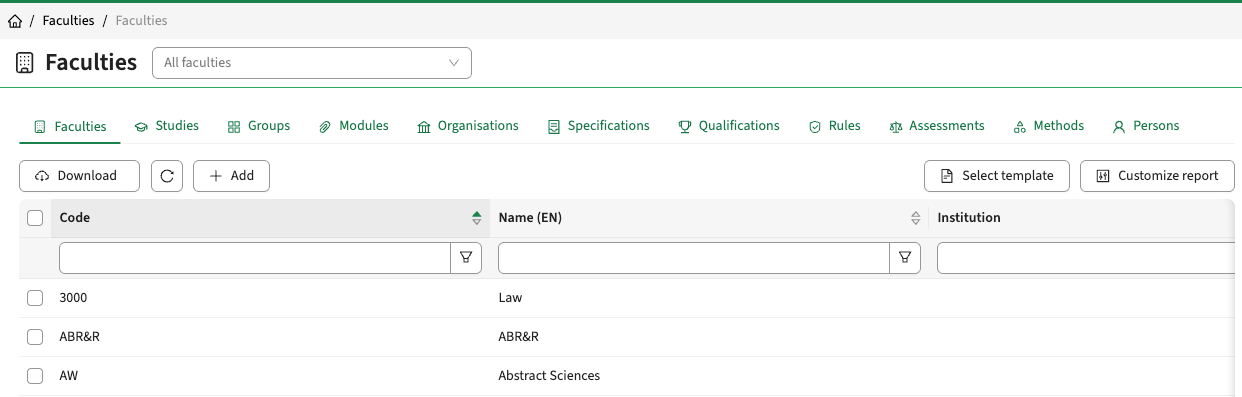
To select a faculty and limit the reports show to the selected faculty, use the drop-down filter.
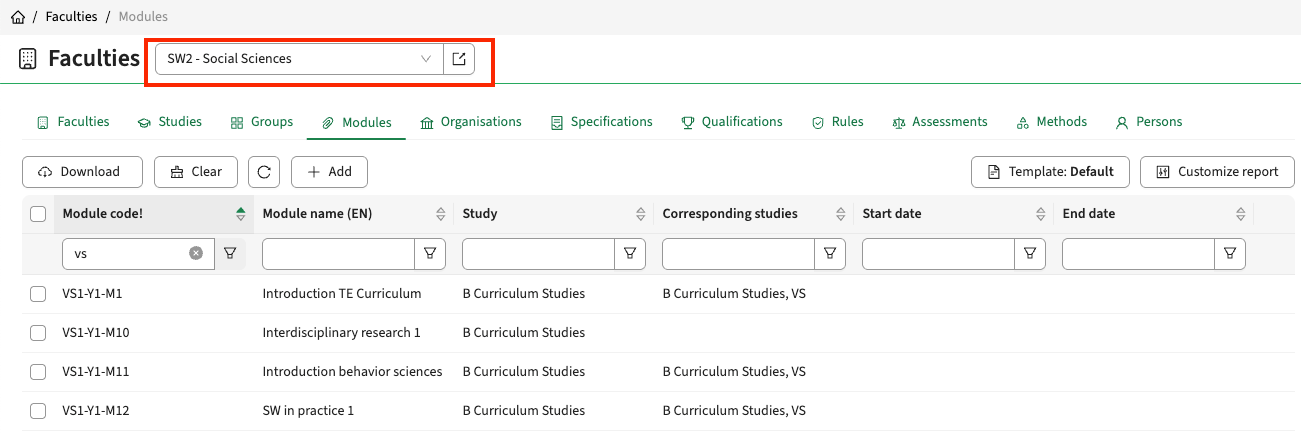
Once selected a button (icon) appears, and once clicked will open the faculty details.

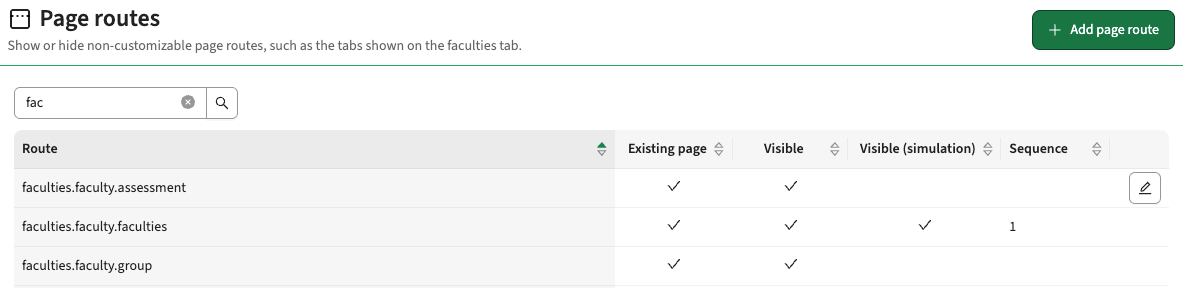
It can be the faculty is not shown as the first option in the report. The order in which the different object types are shown is managed using the administration -> page routes menu using the faculties.faculty.xxxx settings. In the example below the order (sequence) of the faculties.faculty.faculties is set to 1 and the faculty is shown as the first item.
Report filters are shown above the report toolbar - CUR-4503
On every report with its own filters, such as the type filter on the studies and groups reports, the study modes on a study's modules and groups, and the status filter on the methods report, the filters are now shown first, followed by the toolbar directly above the table it acts on. On tabbed pages under Administration, such as a process, a calendar or an academic year, the tab's name is no longer repeated as a heading below the tab bar.
Integration
Extensions, improvements and fixes to the integrations: the Curriculum API, OOAPI, CSV import, and the data exchange with Data Manager, Core and the broker.
Subjects should be removable via the SUBJECT CSV import - CUR-4231
The SUBJECT CSV import has a new optional column remove. When set to true, the subject is removed from the faculty, study, module group or module on that row. The column must come after the description columns and before the custom field columns.
Security
Our build process scans continuously for known vulnerabilities. Fixes are prioritised by impact: some go out as an immediate hotfix, others in the current or next sprint. See the central database of vulnerabilities for details.
Addressed security vulnerabilities - CUR-4663, CUR-4693, CUR-4694, CUR-4695, CUR-4696, CUR-4697
The following reported vulnerabilities have been addressed:
- CVE-2026-65637 (9.8)
- CVE-2026-89425
- CVE-2026-89407
- CVE-2026-91777
- CVE-2026-91776
- CVE-2026-68497
- CVE-2026-83557
- CVE-2026-19032
- CVE-2026-102554
- CVE-2026-118259
- CVE-2026-75140
- CVE-2026-71497
Edit and Delete on an item page should respect EDIT_ITEMS permission - CUR-4606
When an item page is shown as a tab on an object, outside a workflow, the Edit and Delete buttons were shown to users who only have the permission EDIT_ITEMS_WORKFLOW. This has been fixed, and Add, Edit and Delete are now only shown to users with EDIT_ITEMS on the object, or EDIT_ITEMS_WORKFLOW when the page is opened inside a workflow. Other users see the items read only and can open each item with the View button.
See the Curriculum manual for configuration guidance.