This release note lists the features, improvements and fixes in this version. Release dates per version are published in the Study Guide release schedule.
A new approach to tabs and filters
Tabs and filters look simple, but they are tricky to get right. We took the time to look at how they worked, how they should work, and which approach would let us add more to them in a stable way later. Thank you for the many feature requests and bug reports on this topic.
The principle is simple: the tab now leads. A tab has its own address, applies its own filter wherever a visitor comes from, and chooses its sidebar filters the same way it chooses its widgets. Until now, much of this was decided by the technical product type behind the tab.
Each main tab has its own address - SG-711
An overview page is now reached at the name of its tab, such as /master, instead of a technical address such as /studies?mainTab=Master. This solves several problems with links to a tab, and gives visitors an address that makes sense to them. Existing links with the old mainTab parameter are redirected automatically.
Action recommended: because the name of a tab is now its address, the upgrade automatically makes tab names lowercase and unique across the catalogue. Review the names under Administration, Tabs, and rename any that do not read well for students.
Each tab chooses its own sidebar filters - SG-740, SG-711, SG-739, SG-737, SG-743
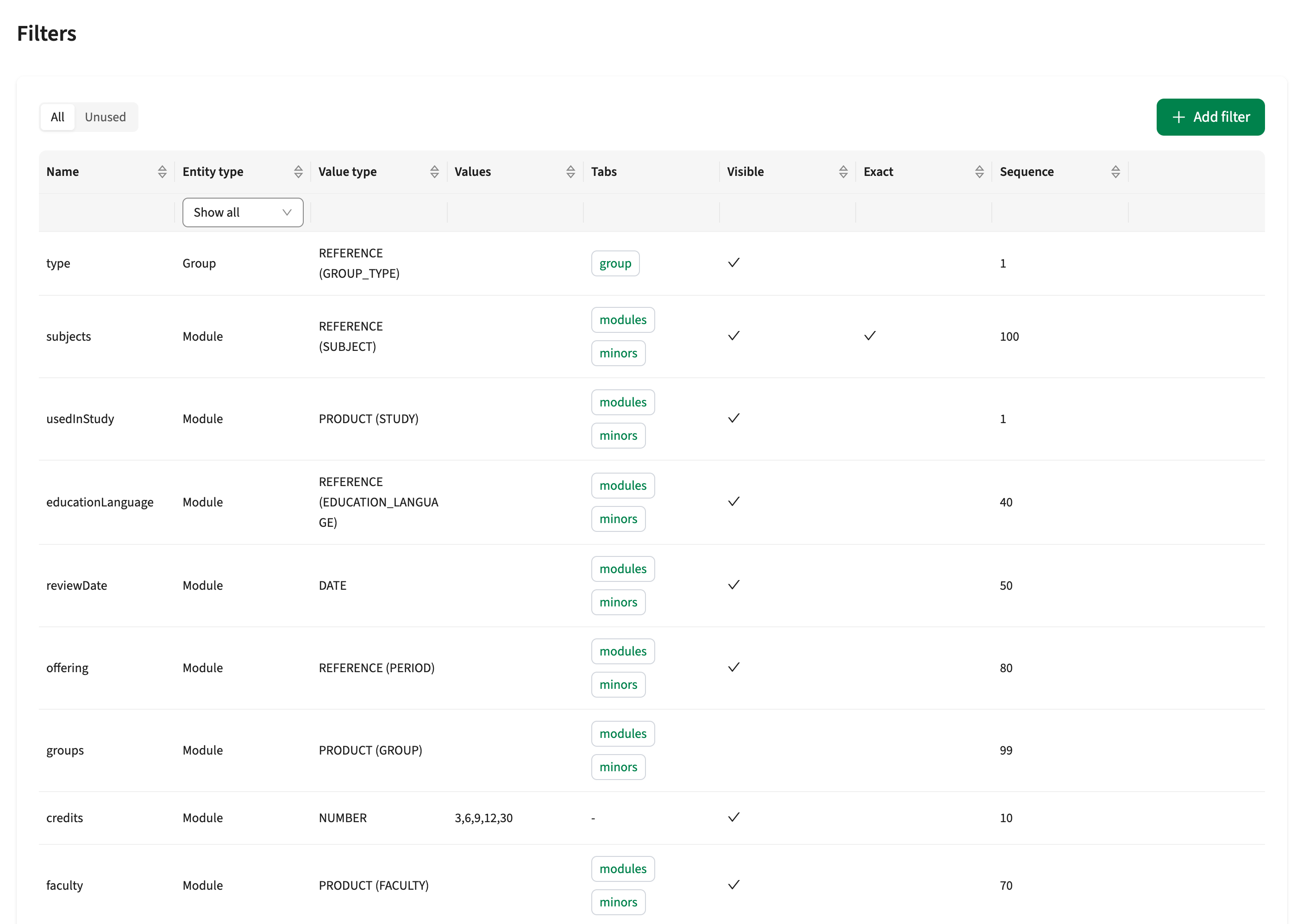
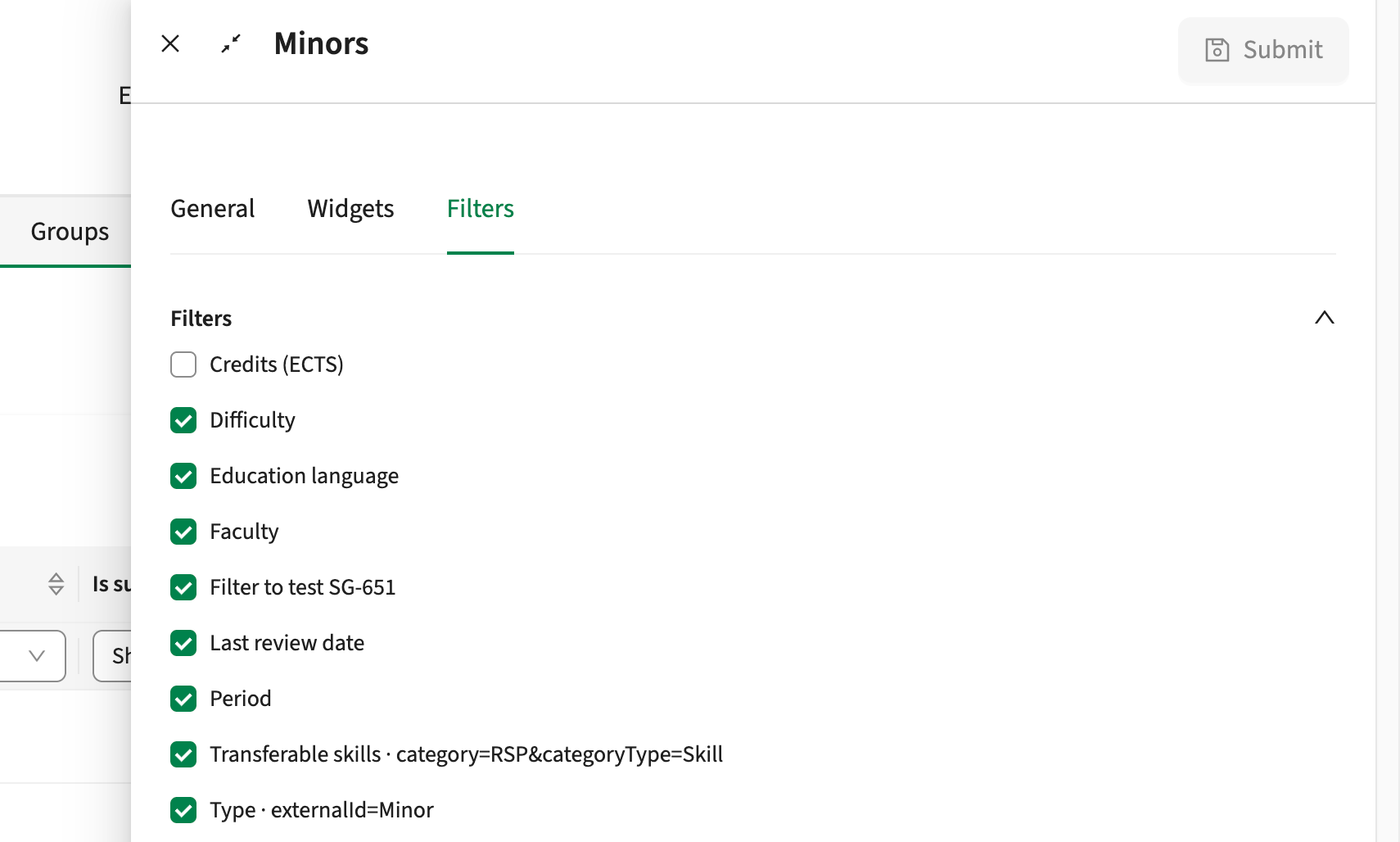
Until now, sidebar filters were configured per product type. Two tabs listing the same type, such as a Bachelor and a Master tab, always showed the same filters, and a tab could offer options that did not apply to it, such as a minors tab offering every study type. Filters now work like widgets: you define a filter once under Administration, Filters, and choose which filters each tab shows on the Filters pane of the tab under Administration, Tabs. A filter can be used by several tabs.
On upgrade, every main tab starts with the filters its product type had.
- A filter whose value the tab already fixes, such as the type on a minors tab, is no longer shown in the sidebar. The tab still applies it.
- Two filters of the same product type can now share a name, so a minor tab and a major tab can each offer their own version of a filter with different options. A tab still holds only one filter of a given name.
- Under Administration, Filters, a Tabs column shows which tabs use each filter, and clicking a tab name opens its settings. A toggle shows the filters no tab uses, so they can be found and removed. A filter whose product type has no main tab starts out unused.
A tab's own filter always applies - SG-711
A tab's own filter, such as the qualification type of a Bachelor tab, is now applied wherever a visitor arrives from: the home page, a bookmark or a link, and not only after clicking the tab. It no longer appears in the address or as a filter tag, so a visitor cannot remove it.
- Filters a visitor chooses narrow the tab's results and never switch to another tab.
- Filters are remembered per tab for the session, so returning through the back link or the browser's back button shows the list as it was left.
A study or module opens under the tab it belongs to - SG-711
When two main tabs had tab filters that differed only after the first condition, such as a Bachelor and a Master tab that differ in qualification type, a study could open under the wrong tab. A master's programme followed from a module, for example, opened under the Bachelor tab, with that tab's header widgets and back link. Only the first condition of a tab filter was checked; every condition is now checked. When no single tab is a clear match, no tab is highlighted, rather than one being guessed.
What comes next
We are not done yet. Study and module detail pages, for example, are still reached at an address based on the technical product type, such as /studies/ followed by the code, and we are still deciding what suits them best. The filters could still work more intuitively as well. The changes we've made so far will allow us to iterate more easily. We would love to hear how the new tabs and filters work for you, so your feedback can shape the next steps.
More improvements
Modules and groups can be filtered by study - SG-735
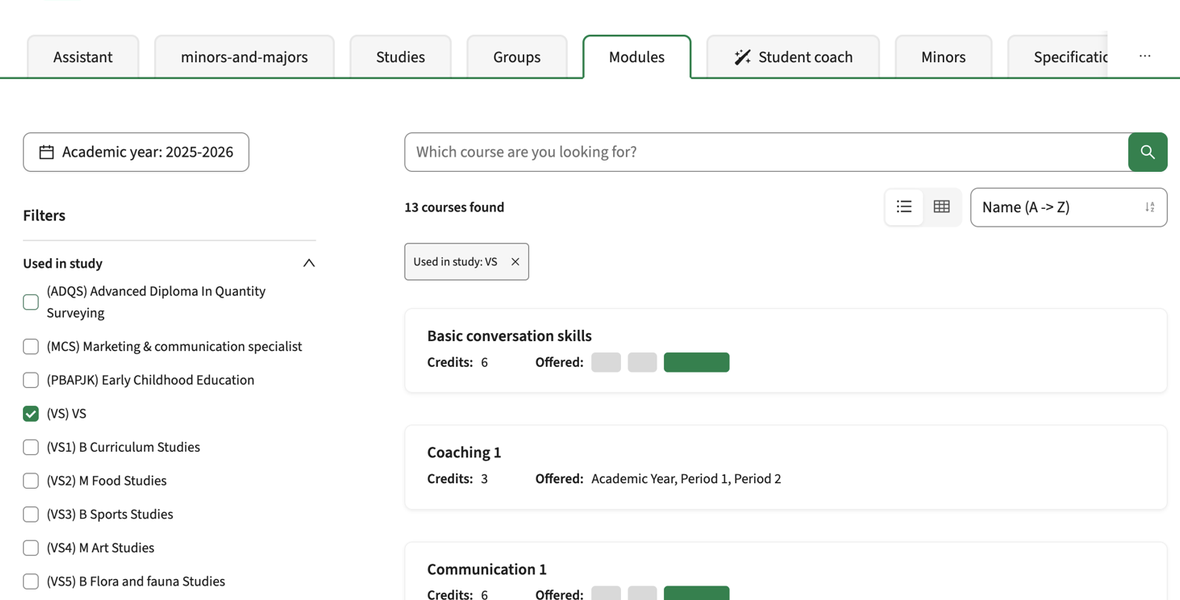
A module or group tab can now offer a filter on study. Choosing a study shows the modules and groups in that study's structure, including those shared with other studies. So the filter checks for usages in the structure, not owners. Choosing several studies shows what any of them include, and the filter can be combined with the other filters in the sidebar.
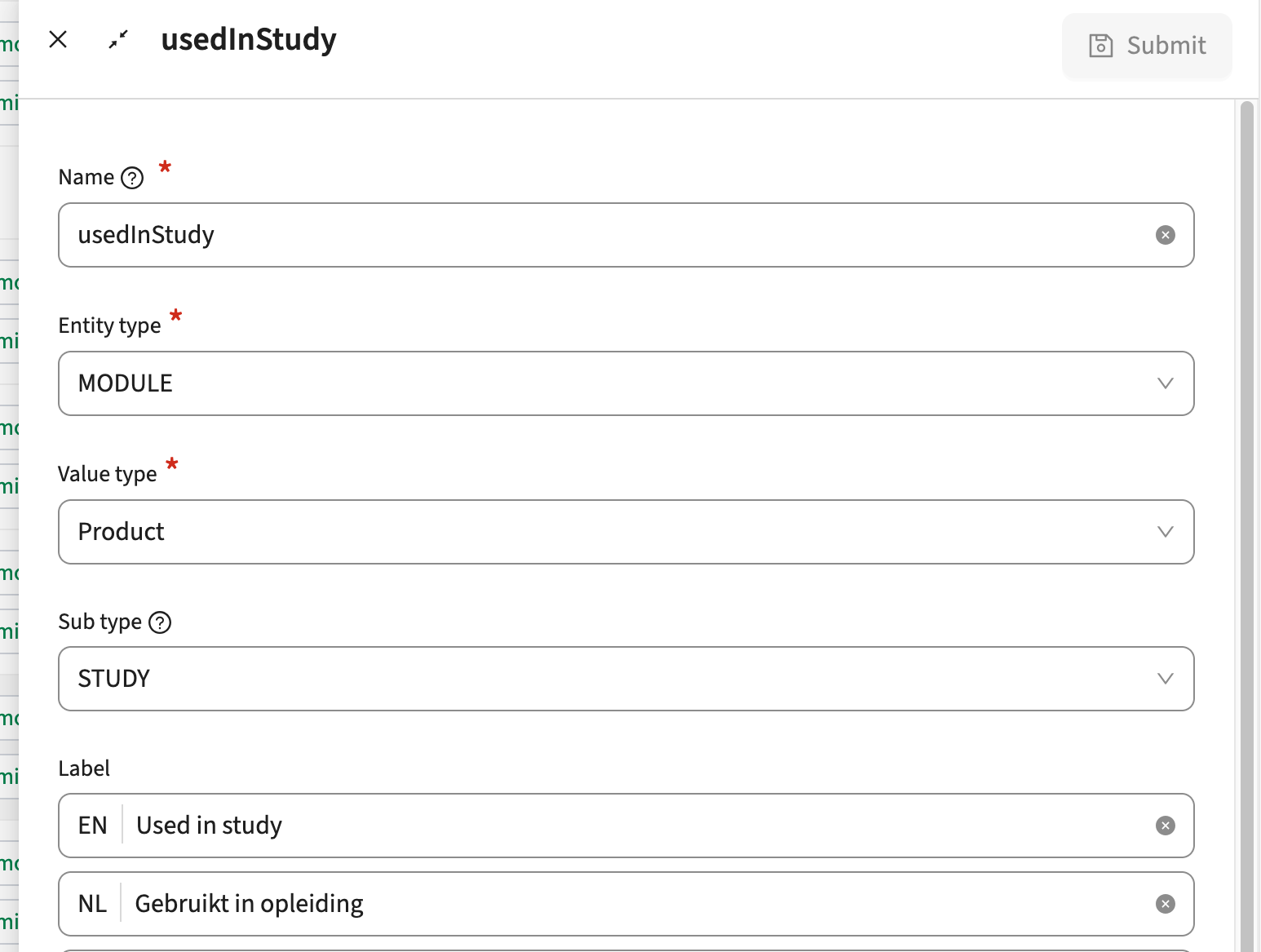
Create the filter under Administration, Filters with value type Product and sub type Study, and add it to the tab on its Filters pane.
The administration pages have a new look and a new address - SG-743, SG-711,
We are working towards one consistent experience across the TimeEdit products, using the same components in more and more places. This release brings the administration pages of the Study Guide in line and improves the user experience in various ways.
- Adding or editing an item now opens a drawer that slides in from the right, instead of a window in the middle of the screen. Save sits at the top, so a long form no longer has to be scrolled to be saved, and closing with unsaved changes asks whether to save or discard them.
- The pages use the full width of the screen, and the row being edited is highlighted.
- A tab's settings are divided into General, Widgets and Filters panes. A widget's fields have their own Fields tab, and editing a field opens a second drawer on top.
- Widgets can be searched by name and by label, the label in any language.
- The windows visitors see, such as print and the filter popup, are unchanged.
The administration pages have also moved under /admin, for example /admin/tabs. Now that tab names are addresses, this keeps them from clashing with a tab and lets them be secured together. Bookmarks to the old addresses are not redirected, as the old name could now belong to a tab, so update them.
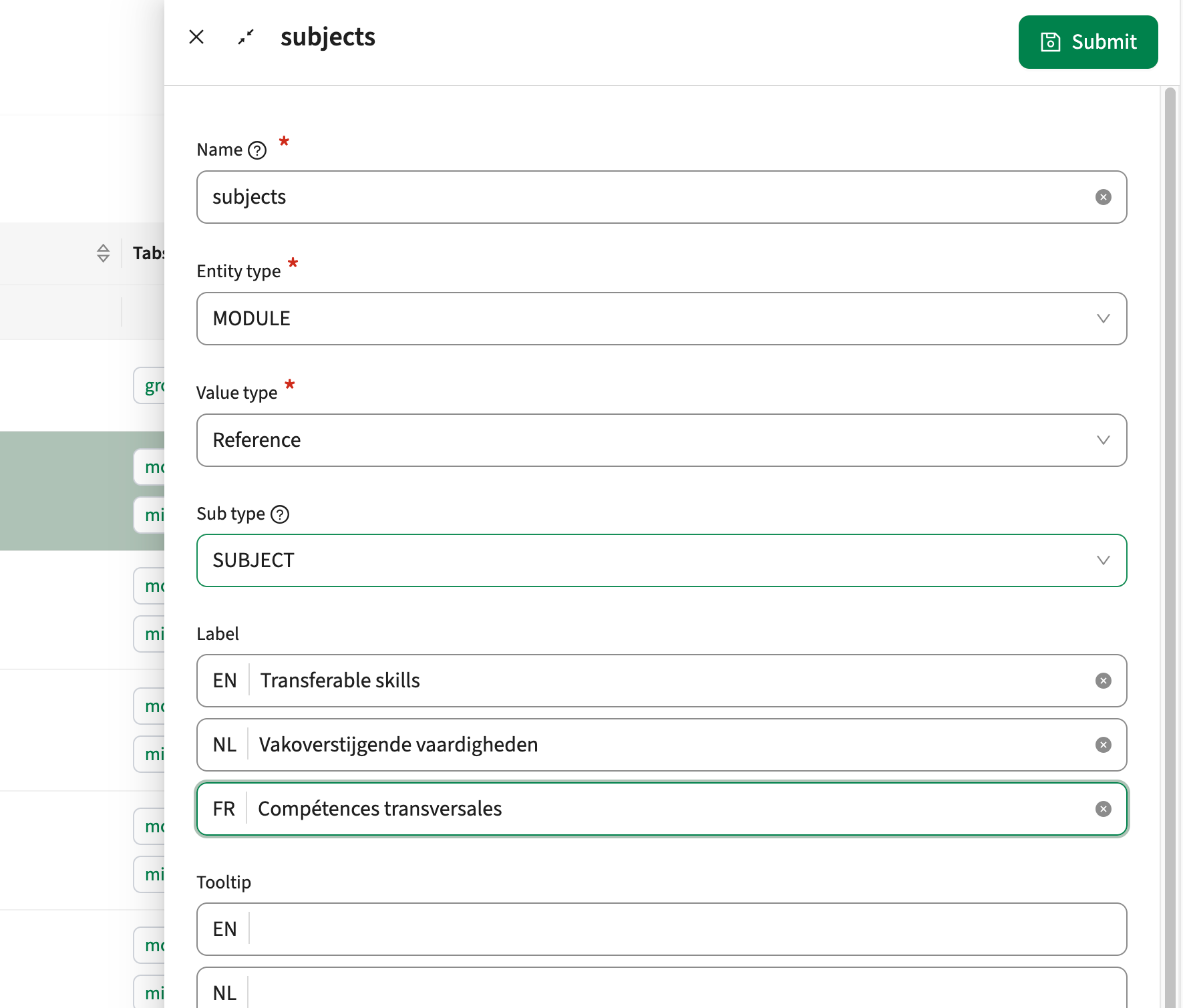
We also fixed a couple of bugs in the process, such as required asterisks missing and being incorrectly shown, and some options sometimes not saving correctly.
The Study Guide can be shown in French - SG-745
French is now available as a language. The Study Guide offers French in the language switcher, shows the French labels, and follows French conventions for dates and form controls.
To offer French, add FR to the languages parameter under Administration, Parameters, then click Synchronize under Administration, Labels to load the French labels.
Integration
Imports from Curriculum are more robust - SG-741, SG-742
- An academic year could appear twice in the list of years. When a year's identifier arrived with a leading or trailing space, the next import with the clean identifier did not recognise it as the same year and created a second one. Identifiers of years, references and products are now trimmed on import, and the upgrade trims those already stored. A year that was duplicated before this version is not merged, so the change applies from this version onwards.
- An import could stop with an error when the data from Curriculum left out a list entirely, such as a study without groups or an organisation without names. A missing list is now read as an empty one, and the import continues.
Security
Our build process scans continuously for known vulnerabilities. Fixes are prioritised by impact: some go out as an immediate hotfix, others in the current or next sprint. See the central database of vulnerabilities for details.
Continued investment in tooling and quality
Ongoing improvements to our automated testing, build pipeline and dependency scanning, so errors and security issues are caught earlier.
See the Study Guide manual for configuration guidance.